33. Reports » Tools » Firewall
The Firewall tab offers detailed information and statistics about the filtering rules (including the associated firewall rules) managed by Wanguard, and provides an easy way for Console users to create their own firewall rules. Its three sub-tabs are listed along the bottom edge, and can be dragged into whatever order suits you.
A filtering rule in Wanguard Filter describes an attack pattern. Types of filtering rules are found in General Settings » Anomaly Mitigation. Ideally, each filtering rule translates into one or more firewall rules, but this depends on the firewall backend. Netfilter supports all rules; other firewalls may be more limited.
33.1. Active Firewall Rules
Lists the firewall rules that are currently applied — the ones a Filter generated automatically, and the ones Console users added by hand — and refreshes every 5 seconds. The columns are Description, Filter, Source » Destination [Ifs], IP Protocol, Firewall Rule, From, Until, Pkts/s (Peak), Bits/s (Peak), Pkts, Bits, and Actions.
The Description of an automatic rule names the anomaly it belongs to; a custom rule shows the description you gave it. The Filter column prefixes the name of the Filter with an icon for the backend that applied the rule. The Firewall Rule column describes the attack pattern of an automatic rule, and reads Custom firewall rule for a manual one — click it to reopen the rule read-only. Until shows the moment the rule expires, the anomaly whose end removes it, or ∞ when only you can remove it. Not every backend counts traffic: Mellanox reports nothing, so Pkts/s, Bits/s, Pkts and Bits all read N/A, and Chelsio counts packets only, so Bits/s and Bits read N/A.
The top bar provides the following controls:
● Actions – Holds [Add Firewall Rule] and [Batch]. [Add Firewall Rule] is disabled while no Filter defines a firewall, and its menu lists only the backends that at least one Filter uses. [Batch] acts on every active firewall rule at once, after asking for confirmation:▪ Reset All Rules – Deletes every active firewall rule from the Console database without changing the firewall configuration of the servers. Use it only when a server lost that configuration, for instance after a power outage or a reset performed without iptables-save▪ Reset Non-Custom Rules – The same, except that the rules added by Console users are kept. Use it when those rules were saved with iptables-save and the Filter process was killed● Sorting – Order the rules by Priority (the default, the order in which the firewall evaluates them), Started, Pkts/s, Bits/s, Peak Pkts/s, Peak Bits/s, Pkts, or Bits● Display – Restrict the listing to one or more of Custom Firewall Rules, Automatic Filtering Rules and Default Filtering Rules, or leave it on All Firewall Rules● Refresh – Regenerate the listing every 5 seconds up to every 15 minutes, or only when you click the button
The Actions column of each rule offers Expire Firewall Rule, which asks for confirmation and then instructs the Filter to withdraw the rule from the firewall. Rules added by Console users also offer Edit Firewall Rule Description, which reopens their description for editing.
The Actions panel and the Actions column are hidden from a Guest user whose role does not grant Firewall Rules Actions. [Batch] additionally requires an Administrator or Operator role.
The three windows below share the same Firewall Rule Expiration fieldset. Rule Active Until decides which field appears beside it: Manually deleted keeps the rule until you remove it; Anomaly ends removes it when the anomaly entered in the Anomaly # field expires; Custom interval removes it after the interval entered in the Custom Interval field; Custom date removes it on the date entered in the Custom Date field. [Add] creates the rule.
33.1.1. Netfilter Firewall
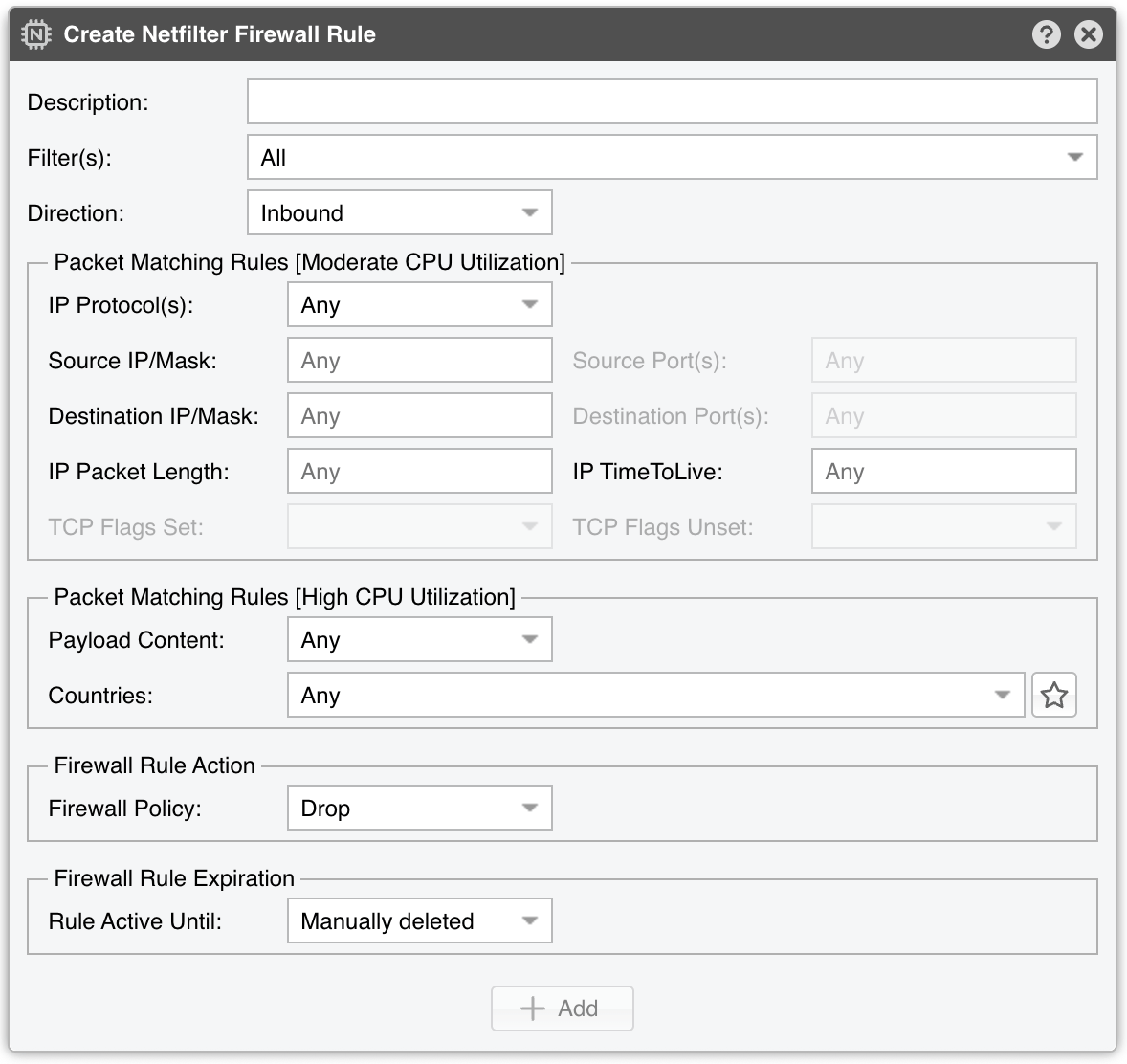
Create Netfilter Firewall Rule window parameters:
● Description – A short name for identifying the firewall rule● Filter(s) – Choose which Filter applies your rule, respecting that Filter’s interface/chain/table settings● Direction – Inbound matches traffic entering the network (where the Filter interface is defined as inbound). Outbound matches outgoing traffic● IP Protocol(s) – One or more IP protocols (e.g., TCP, UDP, SCTP), or Any to match all● Source/Destination IP/Mask – Match traffic by source/destination blocks. The CIDR mask is optional; without it, addresses default to /32 (IPv4) or /128 (IPv6). Source and destination cannot mix IPv4 with IPv6● Source/Destination Port(s) – Specify up to 15 ports or ranges (e.g., “53, 1024:65535”). Editable only while every selected IP protocol is one of TCP, UDP, UDPLITE, DCCP or SCTP● IP Packet Length – Matches the OSI Layer 3 payload length (e.g., Layer 4 packet). Use “:” for value ranges● IP TimeToLive – Matches the TTL field in the IP header. Precede the number with “>” or “<” for greater/less than checks● TCP Flags Set/Unset – Select which TCP flags — SYN, ACK, FIN, RST, PSH, URG — must be set or unset. Flags not specified in either field are ignored, and a flag cannot be named in both. The two fields are editable only while TCP is the sole selected IP protocol● Payload Content – Searches the packet payload for the value typed in the field that appears once you pick String or Hex (Any disables payload matching). Use cautiously, as it can be CPU-intensive● Countries – Matches the source country of inbound traffic, or the destination country of outbound traffic, and requires the xt_geoip Netfilter module on the server. The star button opens the Countries bookmarks, where frequently used selections can be stored and recalled● Firewall Policy – Netfilter firewall action for matched packets:• Drop – Discard the packets• Reject – Discard packets and send an ICMP reply (port unreachable)• Accept – Permit packets to pass• Rate Limit – Allow a limited number of packets or bytes, and drop the excess. It reveals the two fields below● Rate Limit – The allowed rate of packets per time unit. If suffixed with “b”, rate-limiting uses bytes instead of packets● Rate Limit Hashing – Decide whether to apply rate-limiting globally or per object (Source IP, Source Port, Destination IP, Destination Port). For a connection-oriented approach, select all objects. To limit the rate per source IP, choose Source IP
The two Packet Matching Rules fieldsets are labeled with the cost of the rules they hold: the matches in the [High CPU Utilization] fieldset — Payload Content and Countries — are far more expensive than the rest.
33.1.2. Dataplane Firewall
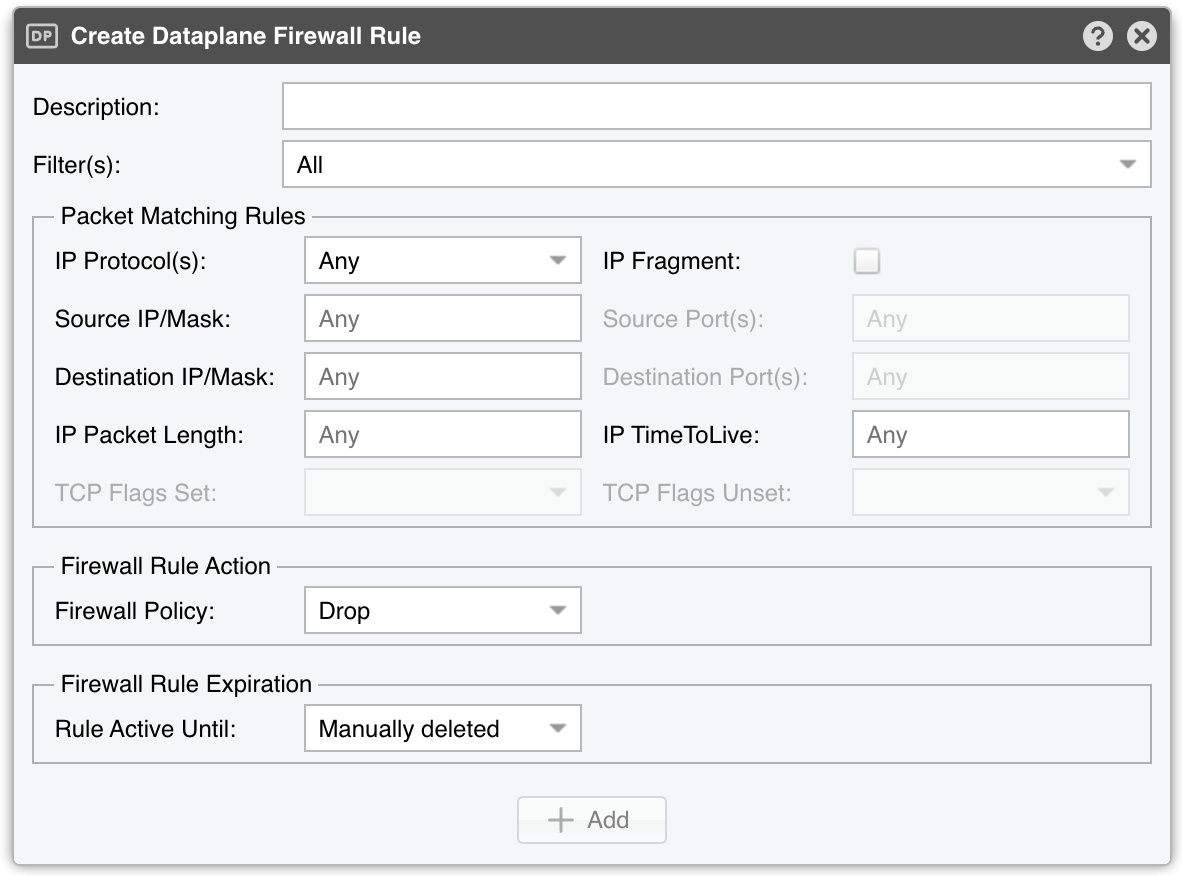
The Create Dataplane Firewall Rule window parameters:
● Description – A short name identifying the firewall rule● Filter(s) – Choose which Filter applies your rule● IP Protocol(s) – Select one or more protocols (TCP, UDP, etc.) or Any to match all packets● IP Fragment – Matches only fragmented packets● Source/Destination IP/Mask – Match traffic by source/destination blocks. The CIDR mask is optional; without it, addresses default to /32 (IPv4) or /128 (IPv6)● Source/Destination Port(s) – Editable only while every selected IP protocol is one of TCP, UDP, UDPLITE, DCCP or SCTP. Matches a set of source or destination ports● IP Packet Length – Matches the OSI Layer 3 payload length (e.g., Layer 4 packet)● IP TimeToLive – Matches the TTL field in the IP header● TCP Flags Set/Unset – Select which TCP flags must be set or unset. Flags not specified in either field are ignored. The two fields are editable only while TCP is the sole selected IP protocol● Firewall Policy – Dataplane firewall action for matched packets:• Drop – Discard the packets• Accept – Permit packets to pass• Count – Only count the packets
33.1.3. Hardware Offload
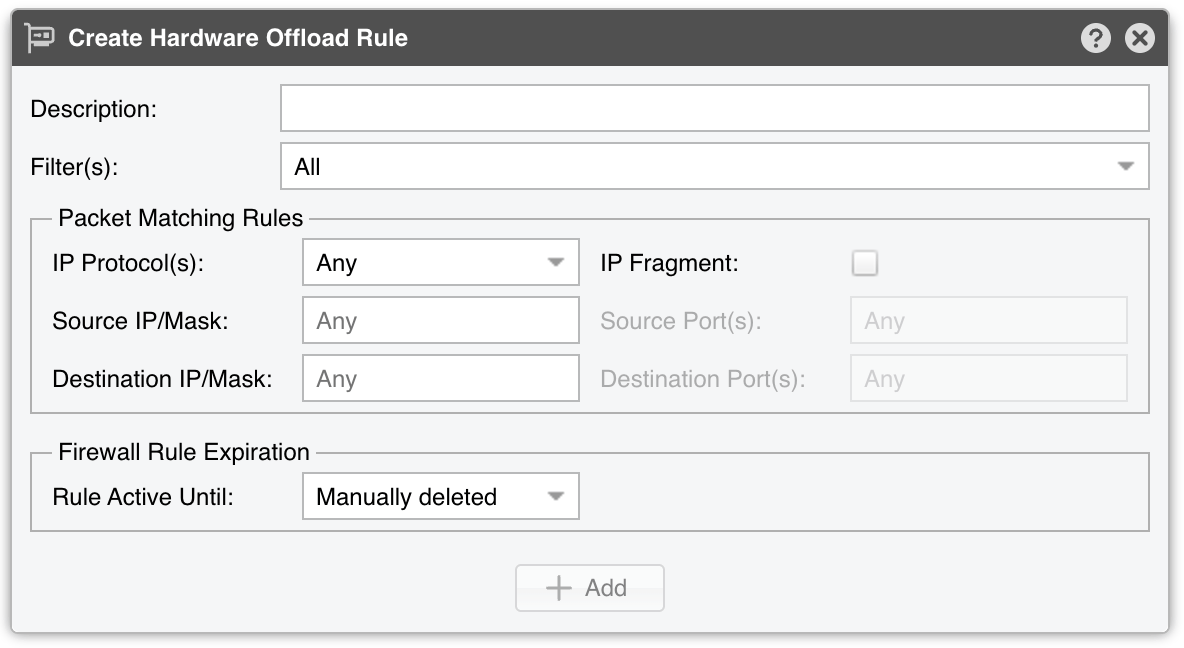
Create Hardware Offload Rule window parameters:
● Description – A short name identifying the firewall rule● Filter(s) – Choose which Filter applies your rule● IP Protocol(s) – Select one or more protocols (TCP, UDP, etc.) or Any to match all packets● IP Fragment – Matches only fragmented packets● Source/Destination IP/Mask – Match traffic by source/destination blocks. The CIDR mask is optional; without it, addresses default to /32 (IPv4) or /128 (IPv6)● Source/Destination Port(s) – Editable only while every selected IP protocol is one of TCP, UDP, UDPLITE, DCCP or SCTP. Matches a set of source or destination ports
The window has no Firewall Policy: a hardware offload rule always drops what it matches. The matched counters are not available in all cases. Chelsio offers partial counters, while Mellanox does not offer any counter information.
33.2. Filtering Rule Archive
A paged grid of the filtering rules the selected Filters detected over the chosen time interval, 100 rows at a time. Click the down arrow on any column header to sort the grid, filter it, or hide columns. Several columns are explained in Reports » Tools » Anomalies.
● Filters – Restrict the grid to the rules of the selected Filters● Row Filtering Expression – An SQL-style condition on the columns of the grid, applied when you press Enter. Write the column names as they appear in the header, in any case, and enclose the ones containing a space in double quotes:Whitelist = 'Yes' AND "Rule Type" = 'IP Address'. Threshold and the rate and counter columns — Pkts/s, Bits/s, Peak Pkts/s, Peak Bits/s, Pkts and Bits — accept a K, M or G suffix; Duration accepts a run of w, d, h, m and s parts, with or without spaces between them; and From and Until accept a date. So"Peak Bits/s" > '1G' AND Duration > '1h30m'selects the rules that peaked above a gigabit and lasted more than an hour and a half. The star button opens the Filtering Rules Filter bookmarks, where frequently used expressions can be stored and recalled● Display – How many columns the grid shows:▪ Brief – The default: №, Filter, Anomaly №, Rule Type, Rule Value, From, Duration, Firewall, Whitelist, Peak Pkts/s, Peak Bits/s, Scrubbed and Log▪ Extended – Adds Status, Anomaly, Prefix, IP Group, Until and Country▪ Full – Adds Decoder, Unit, Domain, Comparison, Threshold, Mitigation Mask, Source Mask, Netfilter Firewall, Dataplane Firewall, Hardware Offload, Flowspec Filters, 3rd-party Firewall, Pkts/s, Bits/s, Pkts, Bits and ISP● Export – Print or export the grid● Time Range – The interval the rules were detected in, the last month by default● Refresh – Reload the grid on demand, or at a set interval
The Log column carries an Open Packet Dump button when the rule captured packets, and an Open Flow List button when a Flow Collector recorded its flows.
33.3. Filtering Rule Distribution
Generates pie or donut charts with filtering rule statistics, for the selected Filters, decoder and time range, the last month by default:
● Filters – Select the Filter(s) of interest, or All● Decoders – Select the decoder of interest● Data Units – Select one or more statistics: Most Used, Anomaly #, Filter, Filtering Rule, Filtering Rule Type, Duration, Attacker ISP, Country, Whitelisted, Default Filtering Rule, Netfilter Firewall, Hardware Offload, 3rd-party Firewall, BGP Flowspec, Dataplane Firewall● Chart Type – Pie (the default), Pie v2, Pie v3, Donut, Donut v2, or Donut v3● Chart Size – Tiny, Small, Medium (the default), Large, or Huge● Chart Title – Auto generates the title automatically, while None omits it● Slice Label – Controls how the chart slices are labeled: Labels In, Labels In v2–v4, Labels Out, or Legend (the default)