22. Components » Packet Filter
The functionality of Packet Filter is described in depth in the Choosing a Method of DDoS Mitigation chapter. Wanguard provides two other Filter components: Flow Filter, which detects filtering rules from flow data exported by a Flow Sensor instead of sniffed packets, and Filter Cluster, which aggregates traffic data from multiple Packet Filters and/or Flow Filters.
To add a Packet Filter, click the [+] button found in the title bar of the Configuration » Components panel. To configure an existing Packet Filter, go to Configuration » Components and click its name.
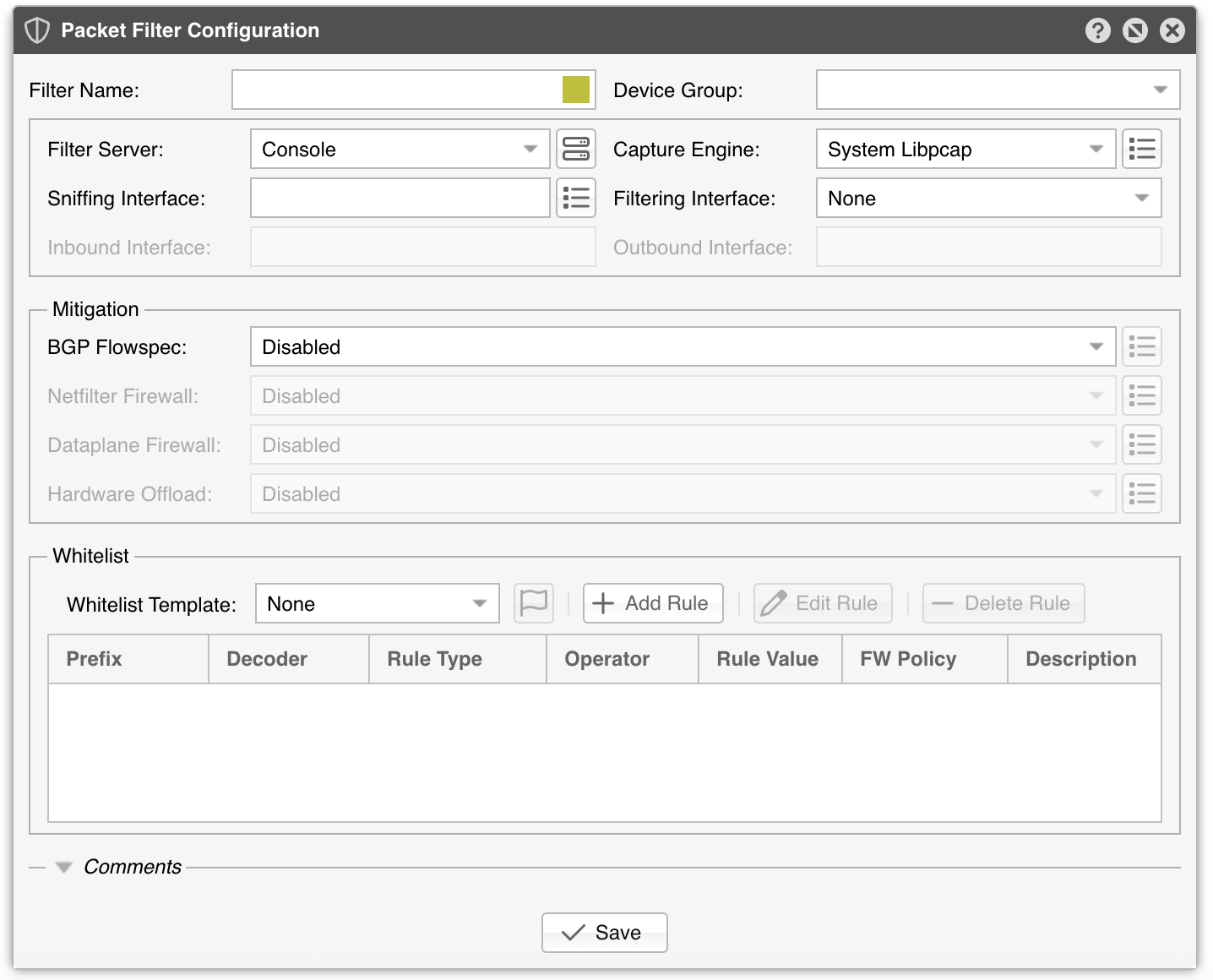
The Packet Filter Configuration window opens on a form whose Filter Name and Filter Server are mandatory: [Save] stays grayed out until both of them are filled in. The Sniffing Interface is verified when you save, and it is required by every capture engine except the two DPDK ones.
Packet Filter Configuration parameters:
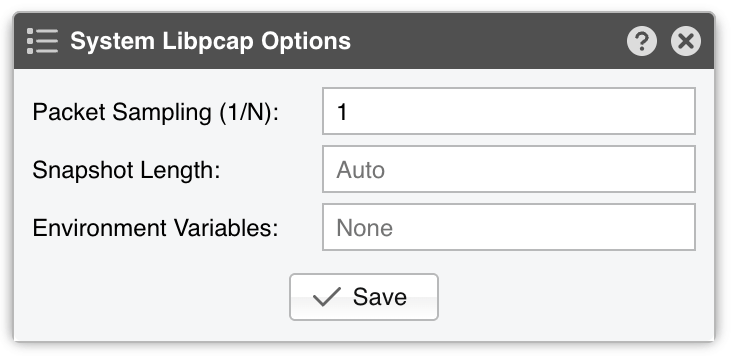
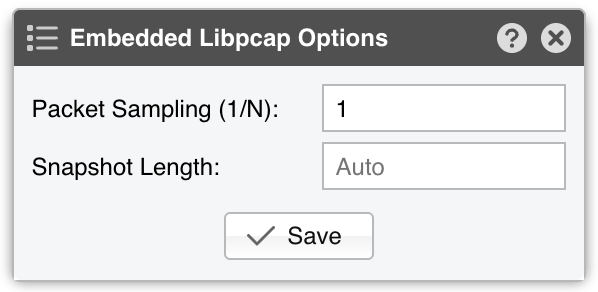
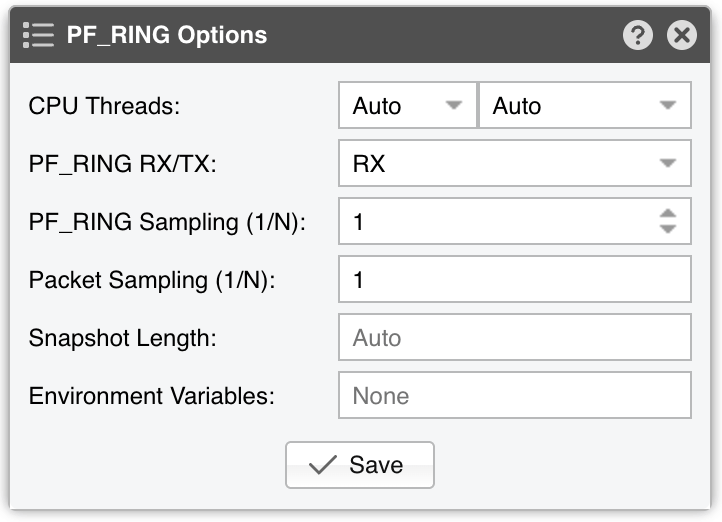
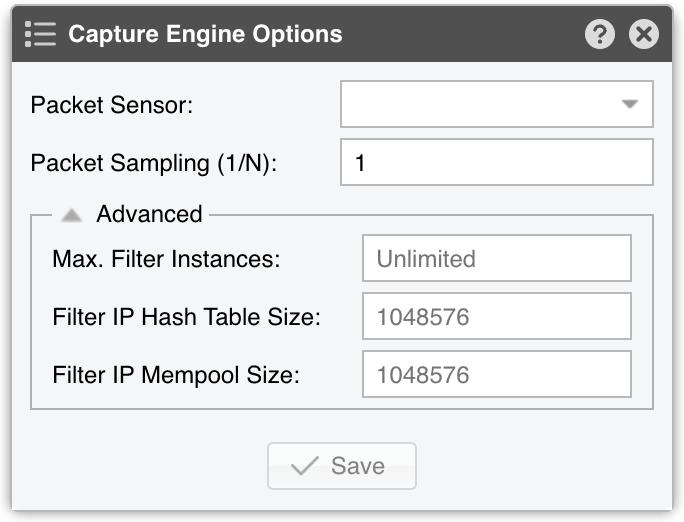
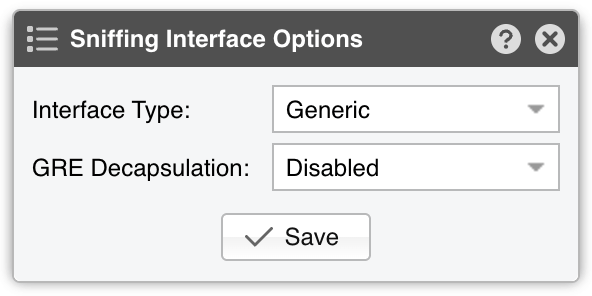
● Filter Name – Assign a short, descriptive name to easily identify the Packet Filter. The colored square inside the field sets the color used by the Filter in graphs; every new Packet Filter starts with a random color● Device Group – (Optional) A label for organizing components, such as by location or characteristics, or to permit role-based access. The combo box is editable, so you can type a new group instead of selecting an existing one● Filter Server – Choose a server that meets the minimum system requirements for running Packet Filter. If this is not the Console server, follow the NFS configuration steps to make the raw packet data visible in the web interface. The button on the right opens the configuration of that server● Capture Engine – Select the preferred packet capturing engine. The button on the right opens the options window of the selected engine:▪ System Libpcap – Uses the libpcap library shipped with the Linux distribution. This is the default engine. It requires no extra setup, but it cannot run on multiple threads and may be too slow for multi-gigabit environments. It opens System Libpcap Options:• Packet Sampling (1/N) – If using a round-robin packet scheduler with multiple filtering servers, set this to the number of servers. Otherwise, set it to 1• Snapshot Length – Sniff <number> bytes of data from each packet rather than the whole packet. Leave it empty (Auto) to capture whole packets• Environment Variables – Some NIC drivers ship their own libpcap and require a specific environment variable▪ Embedded Libpcap – Uses the built-in libpcap library. It opens Embedded Libpcap Options:• Packet Sampling (1/N) – The packet sampling rate. On most systems, the default (1) is correct• Snapshot Length – Sniff <number> bytes of data from each packet rather than the whole packet. Leave it empty (Auto) to capture whole packets▪ PF_RING – Uses the PF_RING framework to accelerate packet processing. PF_RING typically outperforms Libpcap but needs extra kernel modules and only supports certain NICs. PF_RING ZC is not supported by Packet Filter because ZC isolates the interface from the kernel, preventing packet switching, routing, or filtering. That is why neither the PF_RING API selector nor the ZC Cluster ID is shown here. It opens PF_RING Options:• CPU Threads – Packet Filter can run multi-threaded on a given set of CPU cores. Select Auto, or a thread count between 1 and 64. Each thread increases the RAM usage, and typically more than 6 threads degrade performance. The usable number of threads also depends on the RSS queues. The combo box next to it pins the threads to a set of CPU cores, either Auto or any combination of Core 0 through Core 63• PF_RING RX/TX – PF_RING can limit itself to packets matching a specific direction: RX, TX, or RX + TX• PF_RING Sampling (1/N) – PF_RING can sample packets directly in the kernel, which is more efficient than user-space sampling. Enter a value between 1 and 100,000• Packet Sampling (1/N) – If using a round-robin packet scheduler with multiple filtering servers, set this to the number of servers. Otherwise, set it to 1• Snapshot Length – Sniff <number> bytes of data from each packet rather than the whole packet. Leave it empty (Auto) to capture whole packets• Environment Variables – A few PF_RING internal parameters can be set using environment variables▪ DPDK – Choose the DPDK framework for high-performance packet capture. It opens DPDK Options, described in Appendix 1. DPDK takes its ports from that window, so the Sniffing Interface and the Filtering Interface are grayed out▪ DPDK [Packet Sensor] – Uses a DPDK-enabled Packet Sensor for packet capture. Because DPDK offers exclusive NIC access to one process, this option merges Packet Filter logic into the Packet Sensor, so both components listen on the same interface. It opens Capture Engine Options:• Packet Sensor – Select the DPDK-enabled Packet Sensor that captures the traffic and applies the filtering rules. It is mandatory, and it must run on the Filter Server selected above• Packet Sampling (1/N) – The packet sampling rate. On most systems, the correct value is 1• Max. Filter Instances – (Advanced) Limits how many Packet Filter instances can run simultaneously on the Packet Sensor. Leave it empty for Unlimited• Filter IP Hash Table Size – (Advanced) Number of entries in the per-instance IP hash table. Leave it empty for the default of 1,048,576• Filter IP Mempool Size – (Advanced) Number of pre-allocated IP records per Packet Filter instance. Leave it empty for the default of 1,048,576● Sniffing Interface – Specify which network interface(s) the Packet Filter should monitor. Libpcap supports only one interface, while PF_RING supports multiple interfaces if they are comma-separated (,). Using the Inbound Interface raises CPU usage (all traffic is inspected), whereas using the Outbound Interface lowers CPU usage (only forwarded traffic is seen). In the outbound scenario, Packet Filter can still collect dropped-traffic stats from NIC counters. It is grayed out by the two DPDK engines, and required by all the others. The button on the right opens Sniffing Interface Options:• Interface Type – Leave it on Generic, or choose TUN/TAP or GRE if appropriate for the Sniffing Interface• GRE Decapsulation – When Enabled, Packet Filter inspects the inner packet rather than the GRE wrapper• VXLAN Decapsulation – When Enabled, Packet Filter inspects the inner packet rather than the VXLAN wrapper● Filtering Interface – Select on which interface to apply the filtering rules. It defaults to None, and the two DPDK engines gray it out and force it back to None:▪ None – Detects and reports filtering rules but does not apply them. It grays out the Inbound Interface and the Outbound Interface. On every engine except the two DPDK ones it also grays out the Netfilter Firewall and the Hardware Offload, and the Console resets both of them to Disabled when you save▪ Inbound interface – Applies filtering on the Inbound Interface, which becomes mandatory▪ Outbound interface – Applies filtering on the Outbound Interface, which becomes mandatory● Inbound Interface – Enter the interface receiving incoming (ingress) traffic. This parameter can be omitted if Filtering Interface is the same as Outbound Interface. For bridged interfaces, prependphysdev:to the interface name● Outbound Interface – Cleaned traffic is sent to the downstream router/switch via this interface, which should have a route to the default gateway. Omit if Filtering Interface is the same as Inbound Interface. For bridged interfaces, prependphysdev:to the interface name
The Mitigation section selects which firewalls carry out the filtering rules. Each one has an options button on its right that becomes available once the firewall is enabled.
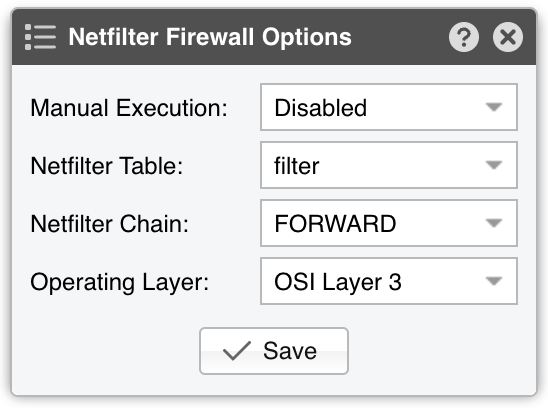
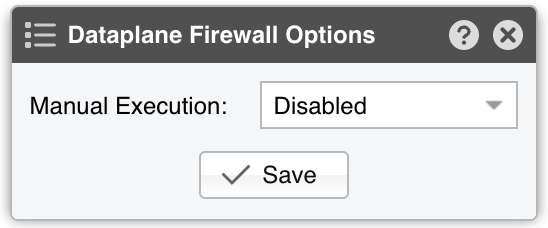
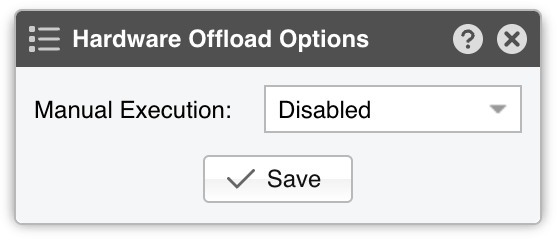
● BGP Flowspec – Choose the policy to apply when sending BGP Flowspec announcements via a Response:▪ Disabled – Packet Filter does not send Flowspec announcements▪ Filtering rules drop matched traffic. Valid traffic is accepted – Matched traffic is discarded by the router; everything else passes▪ Filtering rules rate-limit matched traffic. Valid traffic is accepted – The rate-limit policy applies only to bits/s anomalies; for pkts/s anomalies, any matched traffic is fully discarded● Netfilter Firewall – Packet Filter utilizes the Netfilter framework in the Linux kernel for software-based packet filtering and rate limiting. Because Packet Filter avoids the connection tracking of stateful firewalls, it operates very quickly and remains highly flexible. It is grayed out when the Filtering Interface is None or when the Capture Engine is one of the two DPDK ones:▪ Disabled – Packet Filter detects/reports rules but does not invoke the Netfilter firewall▪ Filtering rules drop matched traffic. Valid traffic is accepted – Packet Filter detects/reports/applies filtering rules via Netfilter. If a rule is not whitelisted, matched traffic is blocked; everything else passes▪ Filtering rules drop matched traffic. Valid traffic is rate-limited – Packet Filter applies filtering rules, dropping non-whitelisted traffic and rate-limiting the rest. Netfilter only supports pkts/s thresholds, and some kernels fail above 10000 pkts/s▪ Filtering rules rate-limit matched traffic. Valid traffic is accepted – Packet Filter rate-limits matched traffic to the threshold. Netfilter does not support bits/s thresholds; some kernels fail above 10000 pkts/s▪ Apply the default Netfilter chain policy – For testing only. Packet Filter detects/reports rules, but all rules have the RETURN targetThe options button opens Netfilter Firewall Options:• Manual Execution – When Enabled, filtering rules are applied only manually, by clicking the Netfilter icon in Reports » Tools » Anomalies• Netfilter Table – The raw option typically offers better performance, but it requires both the Inbound Interface and the Outbound Interface to be set, and it may not work on virtual interfaces. The filter option is the default, and it is usually slower• Netfilter Chain – Use FORWARD if the server forwards traffic, or INPUT if it doesn’t. It is grayed out while the Netfilter Table is set to raw, which always uses PREROUTING• Operating Layer – Choose OSI Layer 2 if the server is configured as a bridge, OSI Layer 3 otherwise● Dataplane Firewall – Controls the built-in, DPDK-based firewall, which outperforms Netfilter but is less flexible and more complex to configure. It is available only when the Capture Engine is DPDK or DPDK [Packet Sensor], and grayed out otherwise:▪ Disabled – Packet Filter detects/reports rules but does not invoke the Dataplane firewall▪ Filtering rules drop matched traffic. Valid traffic is accepted – Matched traffic is dropped inside the dataplane; everything else passesThe options button opens Dataplane Firewall Options:• Manual Execution – When Enabled, filtering rules are applied only manually, by clicking the Dataplane icon in Reports » Tools » Anomalies● Hardware Offload – Choose a NIC hardware-filtering option if available. Because hardware filters don’t use CPU cycles, they can complement the Netfilter or Dataplane Firewall for better performance. It is grayed out when the Filtering Interface is None, unless the Capture Engine is one of the two DPDK ones:▪ Disabled – No hardware filters are applied▪ DPDK Flow API – Leverages the Generic Flow API (rte_flow) in DPDK to offload packet filtering tasks directly to the NIC hardware. It is the only option compatible with the two DPDK capture engines, and it cannot be used with any other engine▪ Chelsio T5+ 10/40/100 Gigabit adapter with LE-TCAM filters – Uses the cxgbtool utility to apply up to 487 filtering rules for source/destination IPv4/IPv6 addresses, source/destination TCP/UDP ports, and IP protocols. The utility can be installed by the Chelsio Unified Wire driver. Drop counters are available for packets, not for bytes▪ Mellanox ConnectX NIC with OFED driver – Uses the ethtool utility to apply up to 924 rules for source/destination IPv4/IPv6 addresses, source/destination TCP/UDP ports, and IP protocols. The utility must be installed by the OFED driver in /opt/mellanox/ethtool/sbin/. No drop counters available▪ Intel x520+ 1/10/40 Gigabit adapter configured to block IPv4 sources – Programs the Intel chipset to drop IPv4 source IPs. Up to 8k hardware filters; no drop counters▪ Intel x520+ 1/10/40 Gigabit adapter configured to block IPv4 destinations – Programs the Intel chipset to drop IPv4 destination IPs. Up to 8k hardware filters; no drop countersThe options button opens Hardware Offload Options:• Manual Execution – When Enabled, filtering rules are applied only manually, by clicking the NIC chipset icon in Reports » Tools » Anomalies
The Whitelist section contains a set of rules that prevent critical traffic from being blocked.
● Whitelist Template – Leave it on None to give this Packet Filter a private set of rules, or select a Whitelist Template to share one set of rules between several components. Selecting a template loads its rules into the grid and makes them read-only; the button on its right opens the configuration of that template● [Add Rule], [Edit Rule] and [Delete Rule] – Manage the private rules of the Packet Filter. They are grayed out while a Whitelist Template is selected, and a rule can also be edited by double-clicking it. The whitelisting rules and their columns are described in the Whitelist Template chapter● Comments – (Optional) A collapsed section at the bottom that stores internal notes about this Packet Filter. These notes are not displayed elsewhere
[Save] writes the configuration, and [Delete] — shown only after the Packet Filter has been saved once — removes it after asking for confirmation. A Packet Filter that a Reports » Dashboards widget, a Filter Cluster, a Scheduled Reports entry or a Response action still refers to cannot be deleted; the Console names what uses it.
Enable the Packet Filter by clicking the on/off switch next to its name in Configuration » Components. If a traffic anomaly triggers the Response action “Detect filtering rules and mitigate the attack with Wanguard Filter”, a Packet Filter instance is launched automatically. If there are no anomalies requiring a Filter instance, Reports » Devices » Overview displays “No active instance”.
Note
You can test any firewall supported by Packet Filter in Reports » Tools » Firewall by clicking [Add Firewall Rule].
22.1. Packet Filter Troubleshooting
[root@localhost ~]# sysctl -w net.bridge.bridge-nf-call-ip6tables=1
[root@localhost ~]# sysctl -w net.bridge.bridge-nf-call-iptables=1
[root@localhost ~]# sysctl -w net.bridge.bridge-nf-filter-vlan-tagged=1
[root@localhost ~]# sysctl -w net.ipv4.ip_forward=1
[root@localhost ~]# sysctl -w net.ipv4.conf.all.forwarding=1
[root@localhost ~]# sysctl -w net.ipv4.conf.default.rp_filter=0
[root@localhost ~]# sysctl -w net.ipv4.conf.all.rp_filter=0
[root@localhost ~]# iptables -L -n -v && iptables -L -n -v -t raw
[root@localhost ~]# for chain in `iptables -L -t raw | grep wanguard | awk '{ print $2 }'`; do iptables -t raw -F $chain; iptables -t raw -X $chain; done
[root@localhost ~]# ethtool --show-nfc <filtering_interface>
Location out of range errors from the ixgbe driver, load it with the right parameters in order to activate the maximum number of 8k filtering rules[root@localhost ~]# cxgbtool <filtering_interface> filter show
License key not compatible with the existing server indicates that the server is unregistered and you need to send the string from Configuration » Servers » [Server] » Hardware Key to sales@andrisoft.com