14. Network & Policy » Threshold Template
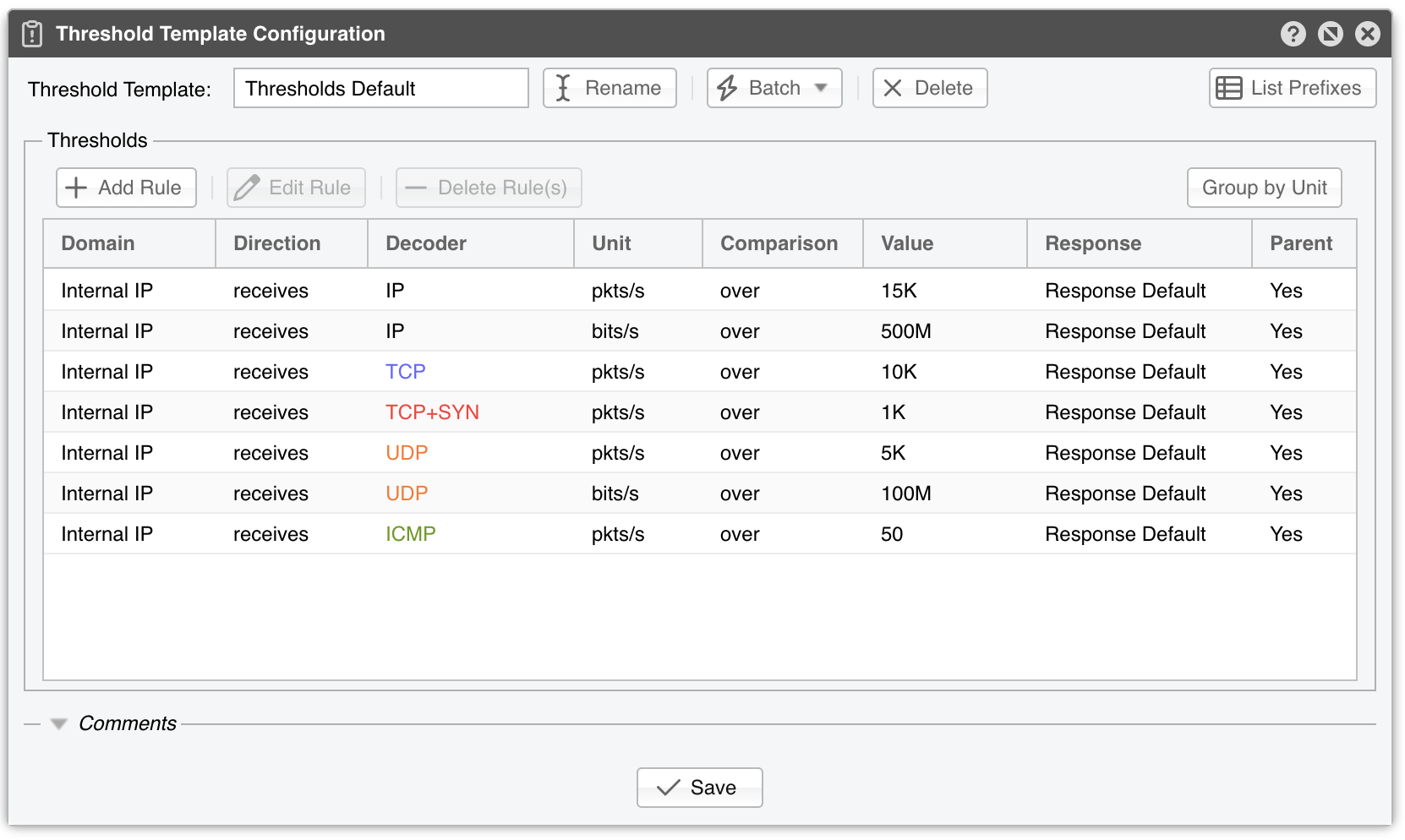
The top bar of the Threshold Template Configuration window carries the name of the template next to [Rename], the [Batch] menu, and [Delete], which asks for confirmation before removing the template. On the right-hand side, [List Prefixes] shows the prefixes that currently use it. The [Batch] menu holds [Restore from File] (which opens the Backup File Importer & Tester and whose Conflict Policy decides whether the rules that already exist are left alone or overwritten), [Duplicate Threshold Template], and [Backup to File]. Under the rules sits a collapsed Comments section for free-form notes, and [Save] writes the template. When your role grants read-only access to templates, the window title is suffixed with [READ-ONLY] and the editing controls are disabled.
The rules are managed with [Add Rule], [Edit Rule], and [Delete Rule(s)] — the grid accepts multiple selections — or by double-clicking a row to edit it in place.
Every threshold rule contains the following metrics:
● Domain – Internal IP detects anomalies to/from an individual IP of the prefix the rule applies to; Subnet takes that prefix as a whole; Subnet /N splits the prefix into its /N blocks and detects anomalies to/from each block, for /N from /20 to /30 for IPv4 and from /36 to /64 (in steps of 4) for IPv6. Inside a Threshold Template, the whole list is offered. A Subnet /N rule takes effect on every prefix that the template is attached to and whose length is between /N−8 and /N. For example, a Subnet /24 rule splits a /16 into 256 blocks and covers a /24 as a single block, the prefix itself (unless that prefix also has a plain Subnet rule of the same kind, which then takes precedence). On prefixes outside that range the rule is ignored and not shown in their Thresholds panel. When the rules are edited directly on a prefix of an IP Zone, the list is limited to what the prefix’s mask allows: its included subnets with a longer prefix, within the same 8-bit span. If the selected subnet is 0.0.0.0/0, another option is possible, which allows detecting anomalies to/from external IPs (for this option to work, the Stats Engine parameter from the Sensor configuration has to be set accordingly)● Direction – The direction of traffic can be receives for the inbound traffic received by the prefix or sends for the outbound traffic sent by the prefix● Decoder – Select one of the decoders enabled in General Settings » Anomaly Detection● Unit – DDoS attacks usually reach a very high number of packets per second, so the pkts/s option is the best way to detect them. For bandwidth-related anomalies, select bits/s● Comparison – Select over to detect volumetric anomalies (e.g., DrDoS, DDoS), or under to detect a gap in the expected traffic● Value – The threshold value can contain:▪ An absolute value. It can be a multiple of 1,000 ifK(kilo) is appended, 1 million ifMis appended, or 1 billion ifGis appended▪ A percentage of the total traffic matched by the selected decoder per Sensor interface. Percentages above 100% are refused▪ Unlimited, which cancels a threshold inherited from a less specific prefix● Response – Select a previously defined Response, or select None to have no reaction to anomalies other than displaying them in Reports » Tools » Anomalies » Active Anomalies. Every rule must name one● Parent – Tick the checkbox if more specific prefixes should inherit the threshold; the column then reads Yes. You can cancel inherited thresholds by defining a similar threshold with Unlimited selected in the Value field● Inheritance – Shown only when the rules are attached to a prefix of an IP Zone; displays the parent prefix when the rule is inherited from a less specific prefix
Note
Adding similar threshold rules in the same prefix or Threshold Template is not allowed, even when the rules have different values or Responses. To execute different actions for different threshold values, define only the smallest threshold value, and then make use of preconditions inside the Response. For example, if you want to activate Wanguard Filter for UDP attacks stronger than 100 Mbps but you also want to null-route them when they reach 1 Gbps, add only the “Internal IP receives over 100M UDP bits/s” rule. Then, inside the Response, add two actions: one that activates Filter without preconditions, and another that executes the null-routing BGP announcement with the precondition “Peak Value” “greater than” “1G”.
14.1. Best Practices for Traffic Thresholds
Warning
The software is designed to collect, analyze, and report extensive information for each detected anomaly. This level of detail is essential for protecting against volumetric attacks that can cripple even the largest networks. Avoid setting thresholds too low, as doing so may generate hundreds of false/minor anomalies from normal traffic and overload the system.
Adjust the default threshold values to match your specific environment and traffic patterns.