27. Schedulers » Event Reporting
Events are brief text messages describing errors, warnings, or changes to operational status. Each Wanguard software component generates events, which are stored in the Console database. To view recent events, click the thin border at the bottom of the window (or press Ctrl+E) to open the South Region. You can also see events per component in Reports » Devices » [Component Name] » [Component Type] Event.
In Configuration » Schedulers » Event Reporting, you can configure Wanguard to send important events periodically by email, syslog, or SNMP.
Event Reporting is listed in Configuration » Schedulers, next to the Scheduled Reports. Click its name to open the Event Reporting Configuration window. There is a single Event Reporting configuration, so the window has no [Delete] button, and [Save] writes the configuration and closes the window.
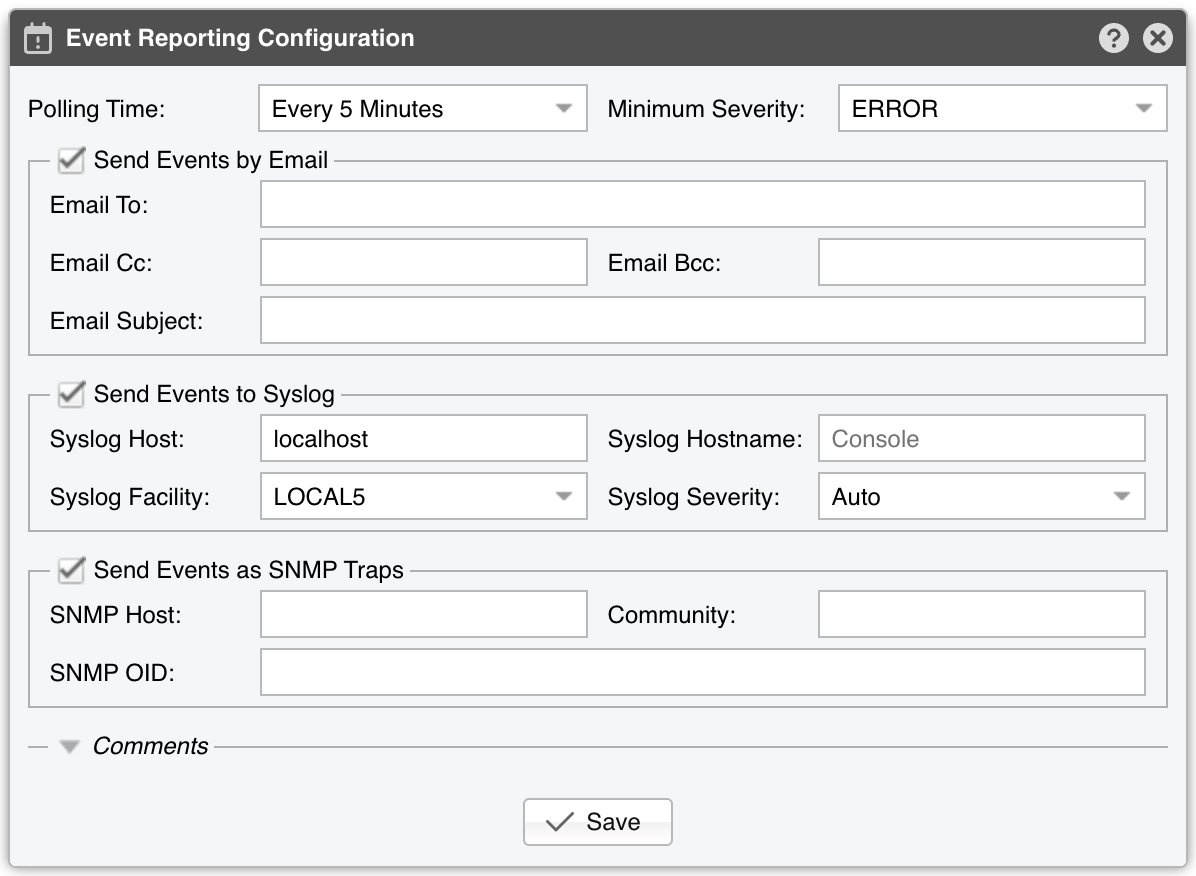
Event Reporting Configuration parameters:
● Polling Time – How often the events are collected and delivered, between Every Minute and Every Month. It defaults to Every 5 Minutes. The same value is also the reporting window: each run picks up the events logged during the interval that has just passed. The hourly and longer intervals are aligned to the clock, so Every Hour runs at minute 0, Every 3 Hours runs at 00:00, 03:00 and so on, Every Day runs at midnight, Every Week runs on Monday at midnight, and Every Month runs on the first day of the month at midnight● Minimum Severity – The lowest event severity to report. Every event of that severity or higher is delivered. It defaults to ERROR▪ CRITICAL – High-impact errors (e.g., memory exhaustion)▪ ERROR – Errors often due to misconfiguration, communication failures, or bugs. Sensors may auto-recover▪ WARNING – Issues like authentication errors, I/O bottlenecks, or time sync problems▪ INFO – Logins or configuration changes▪ DEBUG – Used only for troubleshooting or development● Send Events by Email – Tick the checkbox in the title of the section to email the events. Each run sends a single HTML message listing the events in a table whose columns are Severity, Name, Module, Notification Text and Date. When no event matches, no email is sent. The sender address is the one configured in General Settings » Outgoing Email▪ Email To – The recipients of the email▪ Email Cc and Email Bcc – (Optional) The carbon-copy and blind carbon-copy recipients▪ Email Subject – The subject line of the email● Send Events to Syslog – Tick the checkbox in the title of the section to forward the events to syslog. One syslog message is sent per event, and its text is the module of the event followed by “ -> “ and the text of the event▪ Syslog Host – Set it to localhost or 127.0.0.1, the default, to log the events through the syslog daemon of the Console server. Any other value sends the events as UDP syslog packets to that host, on port 514▪ Syslog Hostname – The hostname written into the syslog messages. Leave it empty to use the hostname of the Console server, or Console when that name cannot be determined. It has no effect while the Syslog Host is localhost or 127.0.0.1, because the local syslog daemon stamps its own hostname▪ Syslog Facility – The syslog facility the messages are logged with, from AUTH to UUCP. It defaults to LOCAL5▪ Syslog Severity – Leave it on Auto, the default, to derive the syslog severity from the severity of each event: CRITICAL becomes ALERT, ERROR becomes ERR, WARNING becomes WARNING, INFO becomes INFO and DEBUG becomes DEBUG. Selecting one of EMERG through DEBUG instead stamps that severity on every message sent to a remote Syslog Host● Send Events as SNMP Traps – Tick the checkbox in the title of the section to send the events as SNMP traps. One SNMPv2c trap is sent per event, with the snmptrap utility of Net-SNMP, which must be installed on the Console server. All three parameters below are required; when any of them is left empty, no trap is sent▪ SNMP Host – The host the traps are sent to▪ Community – The SNMP community string used to authenticate the traps▪ SNMP OID – The object identifier of the trap. It identifies both the trap itself and the variable that carries the text of the event● Comments – (Optional) A collapsed section at the bottom that stores internal notes on this configuration. They are not displayed elsewhere
Note
Nothing is delivered until at least one of the three sections is ticked and Event Reporting is switched on with the on/off switch next to its name in Configuration » Schedulers. Saving the configuration does not switch it on.
Note
At most 1000 events are delivered per run. Choose a Polling Time short enough that a single run does not have to carry more events than that.
Warning
It is highly recommended to keep the events that have a high severity under surveillance!