44. Appendix 2 – Configuring Flow Export
The details below regarding router configurations are for informational purposes only. Refer to your router’s user guides for complete and up-to-date instructions.
Flow Sensor accepts NetFlow v5, v7, v9, sFlow, and IPFIX (standard template). Vendors are listed alphabetically below.
Important
Flow Sensor ignores flows older than 5 minutes, so the exporter must emit records well within that window. On every NetFlow / IPFIX platform, set:
Active timeout: 60 seconds (1 minute) — caps the lifetime of long-lived flows in the cache.
Inactive timeout: 15–30 seconds — flushes idle flows quickly.
For template-based protocols (NetFlow v9, IPFIX), also set the template refresh / retransmit interval to 30–60 seconds so Flow Sensor receives templates promptly after start-up or reconfiguration. sFlow does not use a flow cache and is not affected by these settings — adjust the sampling rate and polling interval instead.
44.1. Allied Telesis
44.1.1. AlliedWare Plus sFlow
AlliedWare Plus supports sFlow on most managed switches. Enable globally, then per port.
configure terminal
sflow agent ip 192.0.2.99
sflow collector ip 192.0.2.1 port 6343
sflow sampling-rate 16384
sflow polling-interval 30
sflow enable
!
interface port1.0.1
 sflow sampling-rate 16384
 sflow polling-interval 30
44.2. Arista
44.2.1. EOS sFlow
sFlow is Arista’s primary flow telemetry on EOS. Once enabled globally, sFlow runs on all front-panel interfaces by default. Use no sflow enable per interface to opt out of specific ports.
sflow source-interface Loopback0
sflow destination 192.0.2.1 6343
sflow polling-interval 30
sflow sample 16384
sflow run
44.2.2. EOS IPFIX (Sampled Flow Tracker)
The sampled Flow Tracker exports NetFlow v9 or IPFIX. The example below uses IPFIX (port 4739, format ipfix version 10). Note that EOS expresses all flow-tracking timers in milliseconds:
flow tracking sampled
  sample 16384
  tracker WGFlowSensor
    record export on inactive timeout 30000
    record export on interval 60000
    exporter WGFlowExporter
      collector 192.0.2.1 port 4739
      format ipfix version 10
      template interval 60000
  no shutdown
!
interface Ethernet1/1
  flow tracker sampled WGFlowSensor
44.3. Check Point
44.3.1. Gaia (NetFlow v9)
Check Point Security Gateways export NetFlow v9 from Gaia. Configure via Gaia clish (or the WebUI under System Management → NetFlow Export).
set netflow export-format netflow-v9
add netflow netflow-collector ip-address 192.0.2.1 port 9996 export-format netflow-v9 enabled true
save config
44.4. Cisco
44.4.1. IOS XE
IOS XE exports flows with Flexible NetFlow, which replaced Traditional NetFlow.
conf t
flow exporter WGFlowSensor
 destination <ip_address>
 source gi0/0/1
 transport udp 9991
 export-protocol netflow-v9
 template data timeout 60
flow monitor WGFlowSensor
 record netflow ipv4 original-input
 exporter WGFlowSensor
 cache timeout active 60
 cache timeout inactive 15
interface gi0/0/2
 ip flow monitor WGFlowSensor input
 exit
exit
wr mem
44.4.2. IOS-XE Everest
flow record v4r2
 match ipv4 tos
 match ipv4 protocol
 match ipv4 source address
 match ipv4 destination address
 match transport source-port
 match transport destination-port
 match interface input
 match flow sampler
 collect routing next-hop address ipv4
 collect ipv4 source mask
 collect ipv4 destination mask
 collect transport tcp flags
 collect interface output
 collect counter bytes
 collect counter packets
 collect timestamp sys-uptime first
 collect timestamp sys-uptime last
 collect routing source as 4-octet
 collect routing destination as 4-octet
!
flow exporter exporter1
 description "exported to external"
 destination x.x.x.x
 source Loopback0
 transport udp 2000
 template data timeout 60
!
flow monitor v4r2
 exporter exporter1
 cache timeout active 60
 cache timeout inactive 15
 record v4r2
!
sampler external1
 mode random 1 out-of 1000
!
interface GigabitEthernet0/0/0
 ip flow monitor v4r2 sampler external1 input
44.4.3. IOS XR
A sample configuration for IOS XR:
flow exporter-map wanguard
 version v9
  options interface-table timeout 300
  options vrf-table timeout 300
  options sampler-table timeout 300
 !
 transport udp <port>
 source Loopback8648
 destination <ip_address>
!
flow monitor-map IPV4-FMM
 record ipv4
 exporter wanguard
 cache entries 16384
 cache timeout active 60
 cache timeout inactive 30
!
flow monitor-map IPV6-FMM
 record ipv6
 exporter wanguard
 cache entries 16384
 cache timeout active 60
 cache timeout inactive 30
!
sampler-map 1-of-128
 random 1 out-of 128

interface TenGigE0/0/2/1
 description Upstream Interface
 ...
 flow ipv4 monitor IPV4-FMM sampler 1-of-128 ingress
 flow ipv4 monitor IPV4-FMM sampler 1-of-128 egress
 flow ipv6 monitor IPV6-FMM sampler 1-of-128 ingress
 flow ipv6 monitor IPV6-FMM sampler 1-of-128 egress
!
44.4.4. Nexus (NX-OS)
Nexus 7000 / 9000 series switches use Flexible NetFlow via the feature netflow command. The example below exports NetFlow v9 — do not enable flow record netflow … use-vrf default sampler with the netflow-lite style, since NetFlow v9 Lite is not supported by Flow Sensor.
feature netflow
!
flow exporter WGFlowSensor
  destination <ip_address> use-vrf default
  source loopback0
  transport udp 2055
  version 9
    template data timeout 60
    option exporter-stats timeout 60
    option interface-table timeout 60
!
flow record WGFlowRecord
  match ipv4 source address
  match ipv4 destination address
  match transport source-port
  match transport destination-port
  match ipv4 protocol
  match ipv4 tos
  collect counter bytes
  collect counter packets
  collect timestamp sys-uptime first
  collect timestamp sys-uptime last
  collect routing next-hop address ipv4
  collect ipv4 source mask
  collect ipv4 destination mask
  collect transport tcp flags
  collect routing source as
  collect routing destination as
!
flow monitor WGFlowMonitor
  exporter WGFlowSensor
  record WGFlowRecord
  cache timeout active 60
  cache timeout inactive 30
!
interface Ethernet1/1
  ip flow monitor WGFlowMonitor input
44.4.5. Legacy Cisco Platforms
The following sections describe NetFlow configuration on older Cisco platforms. They are retained for reference; if you are configuring a modern device, see the sections above.
44.4.5.1. Older IOS Devices
In the configuration mode on the router or MSFC, issue the following to start NetFlow Export.
First, enable Cisco Express Forwarding:
router(config)# ip cef
router(config)# ip cef distributed
Turn on flow accounting for each input interface with the interface command:
interface
ip route-cache flow
For example:
interface FastEthernet0
ip route-cache flow
interface Serial2/1
ip route-cache flow
It is necessary to enable NetFlow on all interfaces through which the traffic of interest flows. Now, verify that the router (or switch) is generating flow stats – try the command ‘show ip cache flow’. Note that for routers with distributed switching (GSR’s, 75XX’s) the RP cli will only show flows that made it up to the RP. To see flows on the individual line cards, use the ‘attach’ or ‘if-con’ command and issue the ‘sh ip ca fl’ on each LC.
Enable the exports of these flows with the global commands:
router(config)# ip flow-export version 9
router(config)# ip flow-export destination <ip_address> 2000
router(config)# ip flow-export source FastEthernet0
Use the IP address of the server running Flow Sensor and the configured listening port. UDP port 2000 is used as an example. The ‘ip flow-export source’ command is used to set up the source IP address of the exports sent by the equipment.
If your router uses the BGP protocol, you can configure AS to be included in exports with the command:
router(config)# ip flow-export version 9 [peer-as | origin-as]
The following commands break up flows into shorter segments: 1 minute for active traffic and 30 seconds for inactive traffic. Flow Sensor ignores flows older than 5 minutes, so it’s very important to export them sooner.
router(config)# ip flow-cache timeout active 1
router(config)# ip flow-cache timeout inactive 30
In enable mode, you can see current NetFlow configuration and state.
router# show ip flow export
router# show ip cache flow
router# show ip cache verbose flow
44.4.5.2. CatOS
In privileged mode on the Supervisor Engine enable NetFlow Data Export:
switch> (enable) set mls nde <ip_address> 2000
Use the IP address of the server running Flow Sensor and the configured listening port. UDP port 2000 is used only as an example.
switch> (enable) set mls nde version 5
The following command is required to set up flow mask to full flows.
switch> (enable) set mls flow full
The following commands break up flows into shorter segments: ~1 minute for active flows and ~30 seconds for inactive flows. Flow Sensor ignores flows older than 5 minutes, so it’s very important to export them sooner.
switch> (enable) set mls agingtime long 8
switch> (enable) set mls agingtime 4
If you want to account all traffic within the specified VLANs rather than inter VLAN traffic use CatOS 7.2 or higher and issue the following command:
switch> (enable) set mls bridged-flow-statistics enable
Enable NetFlow Data Export:
switch> (enable) set mls nde enable
To see current NetFlow configuration and state issue the following commands:
switch> (enable) show mls nde
switch> (enable) show mls debug
44.4.5.3. Native IOS (Catalyst 6500 / 7600)
To configure NetFlow Data Export (NDE) use the same commands as for the IOS device. In the enable mode on the Supervisor Engine, issue the following to set up the NetFlow export version 5.
switch(config)# mls nde sender version 5
The following commands break up flows into shorter segments: ~1 minute for active flows and ~30 seconds for inactive flows. Flow Sensor ignores flows older than 5 minutes, so it’s very important to export them sooner.
switch(config)# mls aging long 8
switch(config)# mls aging normal 4
On the Supervisor Engine 1 issue the following to put full flows into the NetFlow exports:
switch(config)# mls flow ip full
If you have a Supervisor Engine 2 or 720 running IOS version 12.1.13(E) or higher, issue the following commands instead:
switch(config)# mls flow ip interface-full
switch(config)# mls nde interface
44.4.5.4. 4000 Series Switch
Configure the switch the same as an IOS device, but instead of the command ‘ip route-cache flow’ use the command ‘ip route-cache flow infer-fields’. This series requires a Supervisor IV with a NetFlow Services daughter card to support NetFlow Data Export.
44.5. Cumulus Linux & SONiC
Both NVIDIA Cumulus Linux and SONiC run Linux on whitebox switches and use sFlow as the primary flow protocol.
44.5.1. Cumulus Linux (hsflowd)
Install and configure the Host sFlow Daemon:
sudo apt-get install hsflowd
Edit /etc/hsflowd.conf:
sflow {
  collector { ip = 192.0.2.1 udpport = 6343 }
  polling = 30
  sampling = 16384
  agent = lo
  pcap { dev = swp1 }
  pcap { dev = swp2 }
}
Restart the daemon:
sudo systemctl restart hsflowd
44.5.2. SONiC
sFlow is a built-in SONiC feature. Configure via the config CLI:
config sflow enable
config sflow collector add WGFlowSensor 192.0.2.1 --port 6343
config sflow interface enable Ethernet0
config sflow interface sample-rate Ethernet0 16384
44.6. Extreme Networks
44.6.1. EXOS sFlow
sFlow on Extreme EXOS switches:
configure sflow agent ipaddress 192.0.2.99
configure sflow collector 192.0.2.1 port 6343
configure sflow polling-interval 30
configure sflow sample-rate 16384
enable sflow ports all
enable sflow
44.6.2. EXOS IPFIX
IPFIX is available on Summit X670 / X690 / X870 and other modern Extreme platforms.
configure ipfix domain 1
configure ipfix flow-key ipv4-source-address ipv4-destination-address transport-source-port transport-destination-port protocol
configure ipfix ip-address 192.0.2.1 vr VR-Default L4-port 4739
enable ipfix ports all
44.7. Fortinet
44.7.1. FortiGate NetFlow v9
FortiGate firewalls running FortiOS support NetFlow v9 export. Configure the global collector, then enable per-interface sampling.
config system netflow
    set collector-ip 192.0.2.1
    set collector-port 2055
    set source-ip 192.0.2.99
    set active-flow-timeout 60
    set inactive-flow-timeout 15
    set template-tx-timeout 30
end

config system interface
    edit "port1"
        set netflow-sampler both
    next
end
44.8. H3C
44.8.1. Comware NetStream
Comware 7 implements NetStream with syntax similar to Huawei VRP but with H3C-specific commands. The example exports NetStream v9 with packet-based sampling.
sampler my-sampler mode random packet-interval n-power 10
ip netstream export version 9
ip netstream export host 192.0.2.1 9996
ip netstream export source LoopBack0
ip netstream timeout active 1
ip netstream timeout inactive 15
!
interface GigabitEthernet1/0/1
 ip netstream inbound
 ip netstream outbound
 ip netstream inbound sampler my-sampler
 ip netstream outbound sampler my-sampler
44.9. HPE Aruba
44.9.1. ArubaOS-CX sFlow
sFlow on ArubaOS-CX 10.x (CX 6000 / 8000 / 9000 / 10000 series):
sflow
sflow agent-ip 192.0.2.99
sflow collector 192.0.2.1 port 6343
sflow sampling 16384
sflow polling 30
!
interface 1/1/1
 sflow enable
44.9.2. ArubaOS-CX IPFIX
IPFIX is available on ArubaOS-CX 10.10 and later. Refer to the ArubaOS-CX Monitoring Guide for the precise template configuration; the high-level structure is:
ip flow record WGRecord
 match ipv4 source address
 match ipv4 destination address
 match transport source-port
 match transport destination-port
 match ip protocol
 collect counter bytes
 collect counter packets
!
ip flow exporter WGExporter
 destination 192.0.2.1
 source loopback 0
 transport udp 4739
!
ip flow monitor WGMonitor
 record WGRecord
 exporter WGExporter
!
interface 1/1/1
 ip flow monitor WGMonitor in
44.10. Huawei
44.10.1. NetStream
Sample configuration for a sampling value of 400. Applies to VRP-based platforms such as NetEngine routers.
ip netstream as-mode 32
ip netstream timeout active 1
ip netstream timeout inactive 15
ip netstream export version 9
ip netstream export index-switch 32
ip netstream export template timeout-rate 1
ip netstream sampler fix-packets 400 inbound
ip netstream sampler fix-packets 400 outbound
ip netstream export source LoopBack0
ip netstream export host 192.0.2.1 9996
ip netstream export template option sampler
ip netstream export template option timeout-rate 1
44.11. Juniper
44.11.1. MX Series — IPFIX (Junos 22+)
For IPFIX export via the standard inline-jflow infrastructure, use the version-ipfix template type. This is the standard IPFIX path supported by Flow Sensor — not inline-monitoring services, which is not supported.
set services flow-monitoring version-ipfix template AS65535-v4 flow-active-timeout 60
set services flow-monitoring version-ipfix template AS65535-v4 flow-inactive-timeout 30
set services flow-monitoring version-ipfix template AS65535-v4 template-refresh-rate seconds 30
set services flow-monitoring version-ipfix template AS65535-v4 ipv4-template
set services flow-monitoring version-ipfix template AS65535-v6 flow-active-timeout 60
set services flow-monitoring version-ipfix template AS65535-v6 flow-inactive-timeout 30
set services flow-monitoring version-ipfix template AS65535-v6 template-refresh-rate seconds 30
set services flow-monitoring version-ipfix template AS65535-v6 ipv6-template

set forwarding-options sampling instance AS65535-sample input rate 512
set forwarding-options sampling instance AS65535-sample input max-packets-per-second 5000
set forwarding-options sampling instance AS65535-sample family inet output flow-server 192.0.2.1 port 4739
set forwarding-options sampling instance AS65535-sample family inet output flow-server 192.0.2.1 autonomous-system-type origin
set forwarding-options sampling instance AS65535-sample family inet output flow-server 192.0.2.1 version-ipfix template AS65535-v4
set forwarding-options sampling instance AS65535-sample family inet output inline-jflow source-address 192.0.2.99
set forwarding-options sampling instance AS65535-sample family inet6 output flow-server 192.0.2.1 port 4739
set forwarding-options sampling instance AS65535-sample family inet6 output flow-server 192.0.2.1 autonomous-system-type origin
set forwarding-options sampling instance AS65535-sample family inet6 output flow-server 192.0.2.1 version-ipfix template AS65535-v6
set forwarding-options sampling instance AS65535-sample family inet6 output inline-jflow source-address 192.0.2.99

set interfaces xe-0/1/0 unit 0 family inet sampling input
set interfaces xe-0/1/0 unit 0 family inet sampling output
set interfaces xe-0/1/0 unit 0 family inet6 sampling input
set interfaces xe-0/1/0 unit 0 family inet6 sampling output
44.11.2. MX Series — NetFlow v9 (inline-jflow)
Sample configuration for an inactive-timeout/active-timeout of 10 seconds. For these routers, it’s very important to set the Flow Timeout(s) parameter from the Flow Sensor configuration.
set services flow-monitoring version9 template AS65535-v4 flow-active-timeout 10
set services flow-monitoring version9 template AS65535-v4 flow-inactive-timeout 10
set services flow-monitoring version9 template AS65535-v4 ipv4-template
set services flow-monitoring version9 template AS65535-v6 flow-active-timeout 10
set services flow-monitoring version9 template AS65535-v6 flow-inactive-timeout 10
set services flow-monitoring version9 template AS65535-v6 ipv6-template

set forwarding-options sampling instance AS65535-sample input rate 512
set forwarding-options sampling instance AS65535-sample input run-length 0
set forwarding-options sampling instance AS65535-sample input max-packets-per-second 5000
set forwarding-options sampling instance AS65535-sample family inet output flow-server 192.0.2.1 port 9196
set forwarding-options sampling instance AS65535-sample family inet output flow-server 192.0.2.1 autonomous-system-type origin
set forwarding-options sampling instance AS65535-sample family inet output flow-server 192.0.2.1 no-local-dump
set forwarding-options sampling instance AS65535-sample family inet output flow-server 192.0.2.1 version9 template AS65535-v4
set forwarding-options sampling instance AS65535-sample family inet output inline-jflow source-address 192.0.2.99
set forwarding-options sampling instance AS65535-sample family inet6 output flow-server 192.0.2.1 port 9196
set forwarding-options sampling instance AS65535-sample family inet6 output flow-server 192.0.2.1 autonomous-system-type origin
set forwarding-options sampling instance AS65535-sample family inet6 output flow-server 192.0.2.1 no-local-dump
set forwarding-options sampling instance AS65535-sample family inet6 output flow-server 192.0.2.1 version9 template AS65535-v6
set forwarding-options sampling instance AS65535-sample family inet6 output inline-jflow source-address 192.0.2.99

set interfaces xe-0/1/0 unit 0 family inet sampling input
set interfaces xe-0/1/0 unit 0 family inet sampling output
set interfaces xe-0/1/0 unit 0 family inet6 sampling input
set interfaces xe-0/1/0 unit 0 family inet6 sampling output
A frequent issue with Juniper MX running Junos is the size of the flow table, which you can verify with the following command:
root> show services accounting status inline-jflow fpc-slot 0
If the sizes of the flow tables for IPv4 and IPv6 are really small, like 1024 for IPv4 and 512 for IPv6, there is a very high risk of overflowing the tables. When there is no space in the table, the flow is dropped, and the error count is incremented. This may happen quite frequently, especially during DDoS attacks from randomized sources. You can check the number of active flows with:
root> show services accounting flow inline-jflow fpc-slot 0
If the max IPv4/IPv6 flow count was reached, the number of flows that were not created can be seen with:
root> show services accounting errors inline-jflow fpc-slot 0
When there are flow creation errors, the amount of data displayed by Flow Sensor will not match the actual data. There are two solutions:
44.11.2.1. Manual Flow Tables Sizing
You can manually configure the size of both IPv4 and IPv6 flow tables in units of 256K entries. Starting with Junos OS Release 16.1R1 and 15.1F2, by default, the software allocates 1K entries for IPv4 flow tables. To allocate eleven 256K IPv4 and four 256K IPv6 flow tables, enter the commands:
root# set chassis fpc 0 inline-services flow-table-size ipv4-flow-table-size 11
root# set chassis fpc 0 inline-services flow-table-size ipv6-flow-table-size 4
Before Junos OS Release 16.1R1 and 15.1F2, any changes in the configured size of the flow table initiate an automatic reboot of the FPC. Therefore, it is highly recommended that you run these commands in a maintenance window.
44.11.2.2. Flex Flow Tables Sizing
The MX series supports a flex-flow-sizing option that does not require manual sizing between IPv4 and IPv6 tables. To test this feature, delete the previous configuration and reset the counters:
root> clear services accounting statistics inline-jflow fpc-slot 0
Now, configure flexible size allocation of flow tables for all proto families.
root# set chassis fpc 0 inline-services flex-flow-sizing
Check with:
root> show services accounting status inline-jflow fpc-slot 0
44.11.3. Other Junos Platforms (cflowd v5)
For platforms without inline-jflow support, classical cflowd via the control plane is available. The example below exports NetFlow v5:
interfaces {
      ge-0/1/0 {
              unit 0 {
                      family inet {
                              filter {
                                      input all;
                                      output all;
                              }
                              address 192.168.1.1/24;
                      }
              }
      }
}
firewall {
      filter all {
              term all {
                      then {
                              sample;
                              accept;
                      }
              }
      }
}
forwarding-options {
      sampling {
              input {
                      family inet {
                              rate 100;
                      }
              }
              output {
                      cflowd 192.168.1.100 {
                              port 2000;
                              version 5;
                      }
              }
      }
}
44.12. Linux Software Exporters
Any Linux host can act as a flow exporter — useful for VMs, hypervisors, mirror-port collectors, or as a software bridge between a non-flow-capable device and Flow Sensor.
44.12.1. softflowd (NetFlow v9)
A lightweight userspace NetFlow exporter using libpcap.
sudo apt-get install softflowd
softflowd -i eth0 -n 192.0.2.1:9996 -v 9
44.12.2. pmacct nfprobe (NetFlow v9 / IPFIX)
The pmacct toolkit exports NetFlow v9 or IPFIX via its nfprobe plugin.
sudo apt-get install pmacct
Sample /etc/pmacct/pmacctd.conf:
pcap_interface: eth0
plugins: nfprobe
nfprobe_receiver: 192.0.2.1:9996
nfprobe_version: 9
nfprobe_timeouts: tcp=15:maxlife=60
Start:
sudo systemctl restart pmacctd
44.12.3. ipt-netflow (NetFlow v5 / v9 / IPFIX)
Kernel module that exports NetFlow directly from netfilter — efficient on Linux gateways.
sudo apt-get install ipt-netflow-dkms
sudo modprobe ipt_NETFLOW destination=192.0.2.1:9996 protocol=9
sudo iptables -I FORWARD -j NETFLOW
sudo iptables -I INPUT   -j NETFLOW
sudo iptables -I OUTPUT  -j NETFLOW
44.12.4. hsflowd (sFlow)
The Host sFlow Daemon exports sFlow from Linux hosts, hypervisors, and containers. See the Cumulus Linux example above for a typical hsflowd.conf.
44.13. Mikrotik
44.13.1. RouterOS Traffic Flow
If you prefer to configure the MikroTik through WinBox, click on IP -> Traffic Flow.
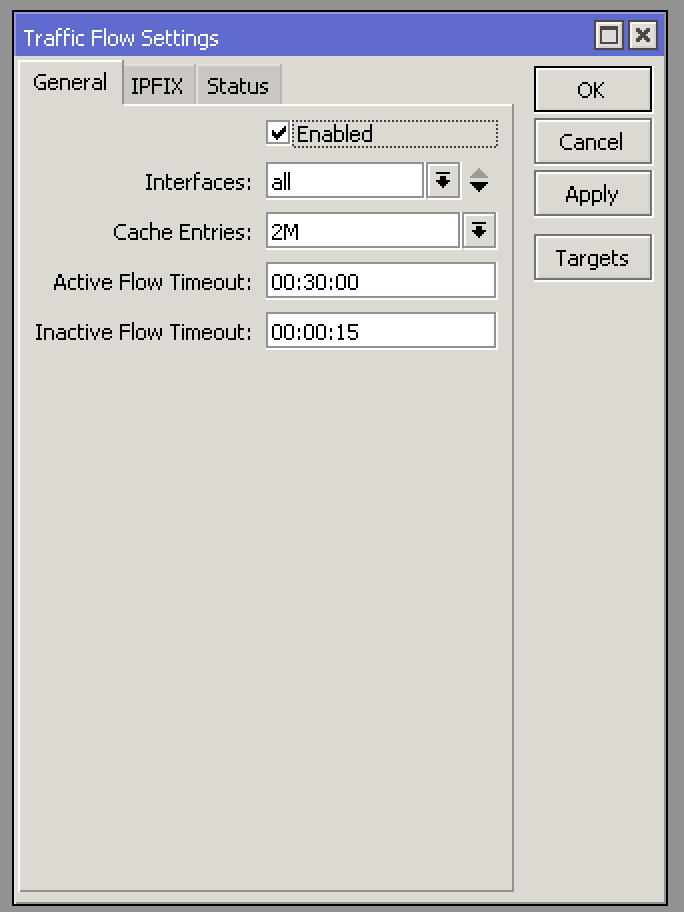
In the Traffic Flow Settings window shown above, select the Enable checkbox, configure which interface(s) will export flows, set the Cache Entries to at least 1M (increase the value if your router’s memory allows), and set Active Flow Timeout to be 1 minute or even less in order to have traffic visibility in a timely manner. The Inactive Flow Timeout value can remain at 15 seconds.
The next step is to configure the Targets, which are the server(s) that will receive the flow data. Click on the Targets Option and then on Add.
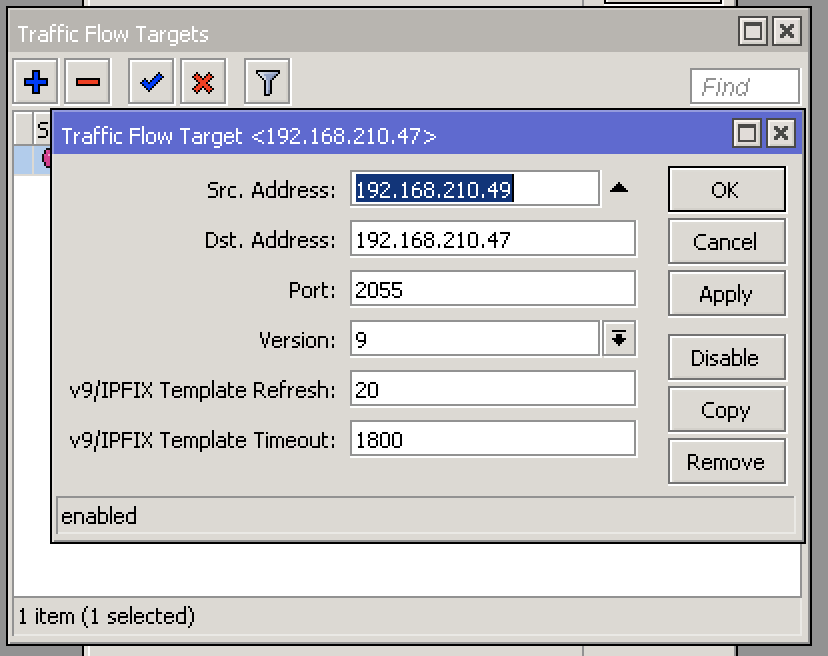
The equivalent RouterOS CLI configuration:
/ip traffic-flow
set enabled=yes interfaces=all cache-entries=1M active-flow-timeout=1m inactive-flow-timeout=15s
/ip traffic-flow target
add dst-address=192.0.2.1 port=2055 version=9
44.14. Nokia
44.14.1. SR OS — NetFlow v9 (cflowd)
Standard cflowd configuration with NetFlow v9 export on Nokia 7750 SR / 7950 XRS platforms. Apply cflowd-parameters to each interface to be sampled.
configure
    cflowd
        active-timeout 1
        inactive-timeout 15
        template-retransmit 60
        cache-size 65536
        collector 192.0.2.1 port 2055
            description "Wanguard Flow Sensor"
            version 9
            autonomous-system-type origin
            no shutdown
        exit
        no shutdown
    exit
    router "Base"
        interface "to-upstream"
            cflowd-parameters
                sampling unicast type interface
                sampling unicast direction in-out
            exit
        exit
    exit
44.14.2. SR OS — IPFIX (cflowd)
For IPFIX export, change the collector version to 10 (the IPFIX protocol version) and switch to the IPFIX port. The rest of the cflowd configuration is identical to the NetFlow v9 example above.
Note
Do not use the ie315 template introduced in SR OS 25.7.R1. Flow Sensor does not currently support that variant.
configure
    cflowd
        collector 192.0.2.1 port 4739
            description "Wanguard Flow Sensor"
            version 10
            autonomous-system-type origin
            no shutdown
        exit
    exit
44.15. Palo Alto Networks
44.15.1. PAN-OS NetFlow v9
PAN-OS firewalls export NetFlow v9. Configure a NetFlow server profile, then assign it to each interface that should export flows. The example below uses configure mode CLI (equivalent paths exist in the WebUI under Device → Server Profiles → NetFlow and Network → Interfaces). PAN-OS expresses the active timeout and the template refresh rate in minutes, so the values below are the shortest it supports.
configure
set shared server-profile netflow Wanguard-NF server Wanguard ip-address 192.0.2.1 port 2055
set shared server-profile netflow Wanguard-NF template-refresh-rate minutes 1 packets 20
set shared server-profile netflow Wanguard-NF active-timeout 1
set network interface ethernet ethernet1/1 layer3 netflow-profile Wanguard-NF
commit
44.16. VyOS
44.16.1. VyOS NetFlow / IPFIX
VyOS (open-source router, Vyatta fork) exports NetFlow v9 or IPFIX via its built-in flow-accounting system. To export IPFIX instead of NetFlow v9, change version 9 to version 10.
configure
set system flow-accounting interface eth0
set system flow-accounting netflow version 9
set system flow-accounting netflow server 192.0.2.1 port 9996
set system flow-accounting netflow source-ip 192.0.2.99
set system flow-accounting netflow sampling-rate 100
set system flow-accounting netflow timeout expiry-interval 60
commit
save
44.17. ZTE
44.17.1. ZXR10 NetStream
ZTE ZXR10 routers and switches export NetStream (NetFlow-compatible) via syntax similar to Huawei VRP.
ip netflow timeout 1
ip netflow flow-export source LoopBack1
ip netflow flow-export destination 192.0.2.1 9996
ip netflow flow-export version 9
!
interface gei_1/1
 ip netflow ingress
 ip netflow egress