Outdated documentation
This page documents Wanguard 8.5. The current version is Wanguard 9.0.
30. General Settings » User Management
In Configuration » General Settings » User Management, you can add, modify and delete Console user accounts and roles.
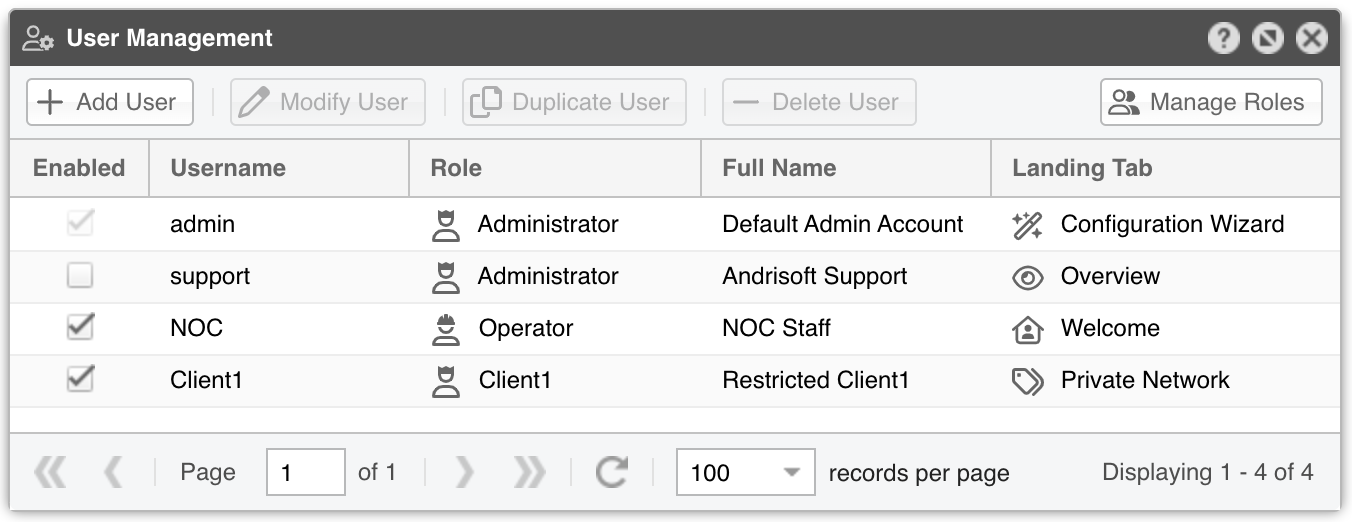
To create a Console user account, click [Add User], then assign the Role. By default, there are Administrator and Operator roles, but you can define new roles with granular permissions (reports/configuration) by clicking [Manage Roles].
To modify an existing account, either double-click it or select it and choose [Modify User].
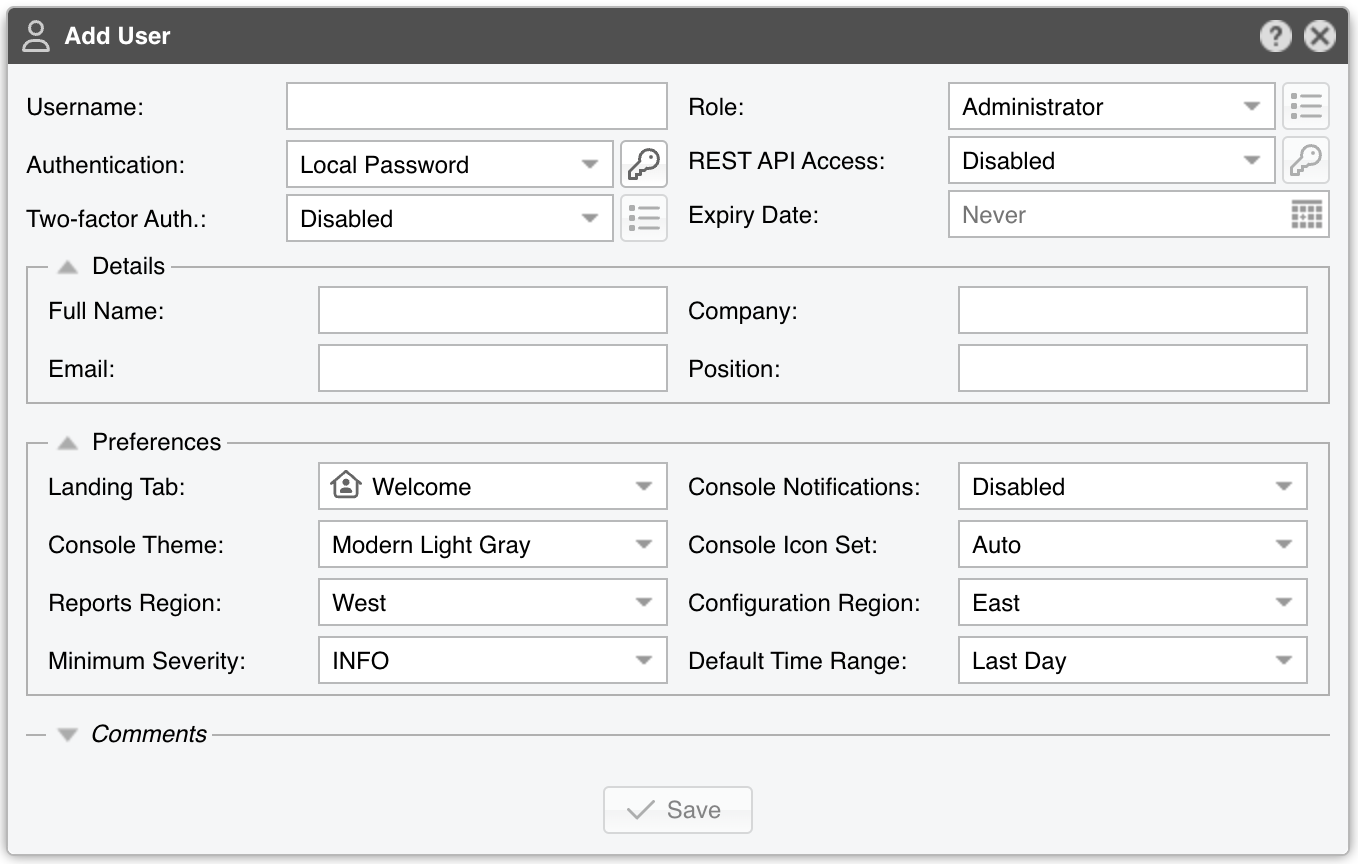
These parameters are mandatory when creating or modifying a user account:
● Username – A unique account name● Role – Choose one of the existing roles in Configuration » General Settings » User Management » Manage Roles. For granular, permission-based access, create a new role first, then select it here● Authentication – The following authentication options are available:▪ Local Password – The user is authenticated with the password entered when clicking the Options button. The database stores only the password hash, so it’s not possible to decrypt the plaintext password▪ Remote – The user is authenticated by the LDAP or RADIUS servers configured in General Settings » User Authentication● REST API Access – Defines whether the user can access the REST API via their credentials or an API Key (set when clicking the Options button):▪ Disabled – No API access▪ Enabled – API access + Console access▪ Exclusive – API access only (no Console)● Two-factor Authentication – Requires a Time-Based One-Time Password (TOTP) app (e.g. Google Authenticator). TOTP works only if server and mobile device clocks are in sync● Expiry Date – The user cannot log in after this date. Leave blank to disable expiry● Landing Tab – The tab shown immediately after logging in. The list grows as you add sensors, dashboards, IP groups, or other objects● Console Notifications – Controls visual/audio notifications from Responses. May need a page refresh for immediate effect● Console Theme – Changes the overall UI appearance● Console Icon Set – Changes the appearance of icons:▪ Auto – Selects icons based on the Console Theme (Modern for modern themes, Classic otherwise)▪ Modern – Monochrome, SVG-based▪ Classic – Colored, bitmap-based● Reports Region – Adjusts the position of the Reports Region in the interface● Configuration Region – Adjusts the position of the Configuration Region in the interface● Minimum Severity – The lowest severity level of events displayed in the Console● Default Time Range – The default timeframe for dashboards upon opening
30.1. Roles
Each Console user must be assigned to one role (access level). There are three role classes:
● Administrator – Full privileges; can manage all user accounts● Operator – Can modify any configuration but cannot edit user accounts; no access to General Settings » License Manager● Guest – Granular, permission-based access to reports, dashboards, Sensors, IP groups, configuration objects, and more
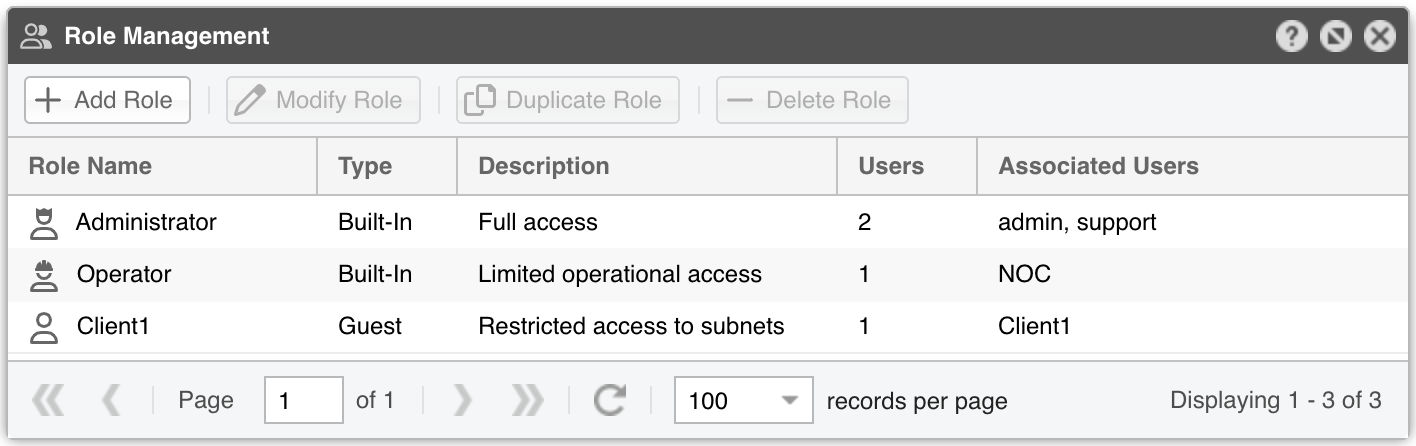
To create a Guest role, open Configuration » General Settings » User Management » Manage Roles and click [Add Role].
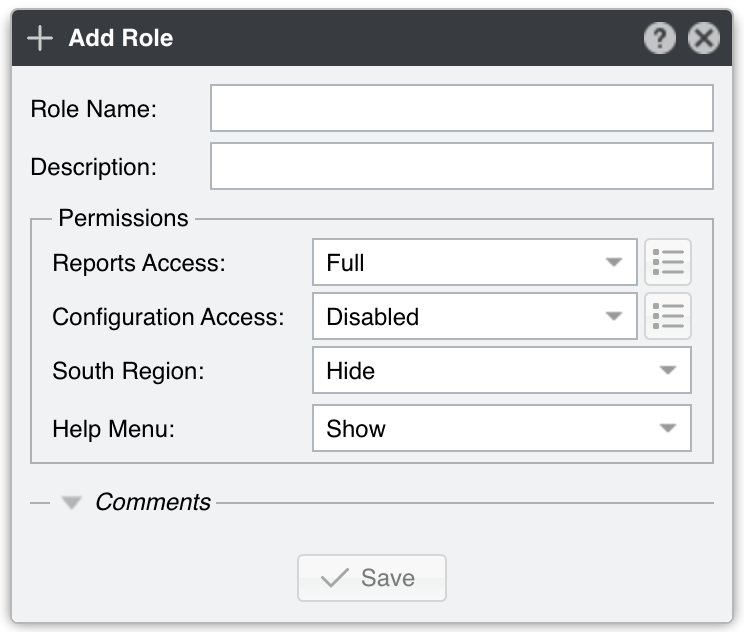
Mandatory parameters:
● Role Name – A unique name for the role● Reports Access▪ Full – Full access to the Reports Region; cannot add Dashboards▪ Custom – Click the options button to set detailed permissions (see Custom Reports Access)● Configuration Access▪ Disabled – No access to the Configuration Region▪ Custom – Click the options button to set detailed permissions (see Custom Configuration Access)● South Region – Enable or hide the South Region● Help Menu – Show or hide the Help menu in the Upper Menus
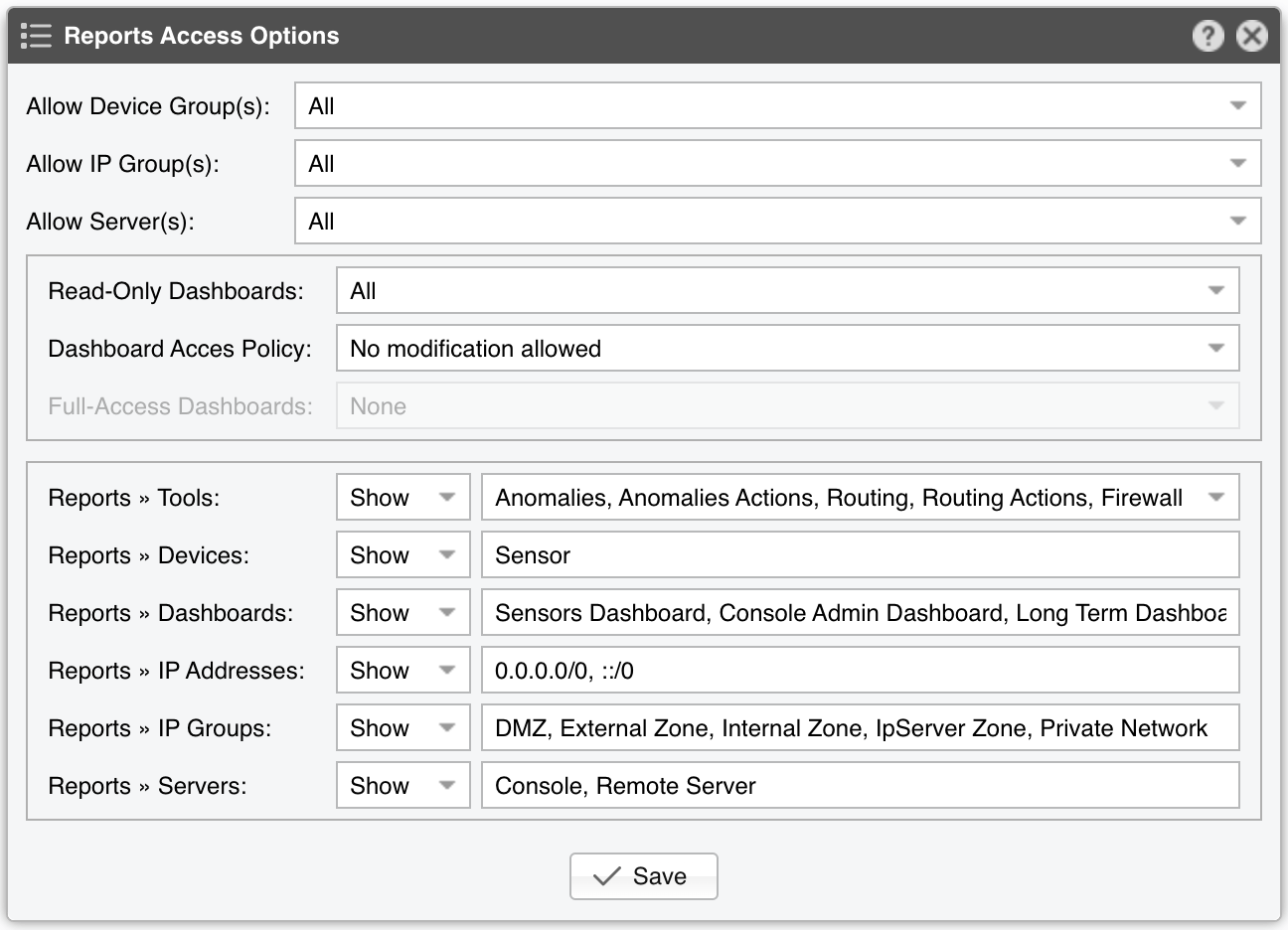
30.1.1. Custom Reports Access
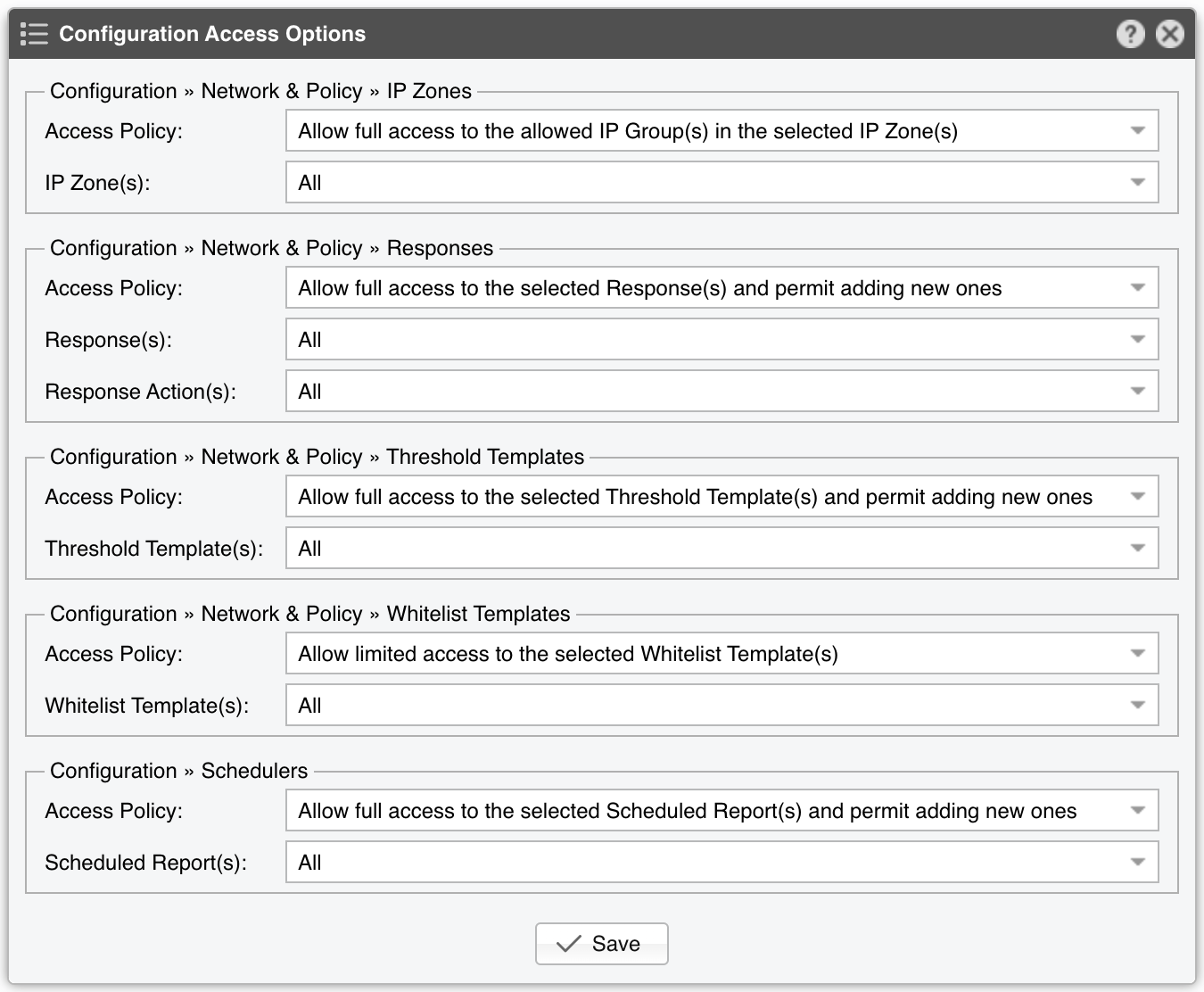
30.1.2. Custom Configuration Access